
Regular expressions (also called regexp, or regex) are a mechanism for finding and replacing text. In a string, a file, multiple files... They are used by developers in application code, testers in autotests, and even just when working on the command line!
Why is this better than a simple search? Because it allows you to specify a pattern.
For example, you receive a date of birth in the DD.MM.YYYY format. You need to pass it on, but in the YYYY-MM-DD format. How can you do this with a simple search? You don't know in advance what the exact date will be.

But a regular expression allows you to set a pattern like 'find me numbers in this format'.
What are regular expressions used for?
Delete all files starting with test (cleaning up test data)
Find all logs
Grep logs
Find all dates
...
And also for replacement — for example, to change the format of all dates in a file. If there's only one date, you can change it manually. But if there are 200, it's easier to write a regex and replace them automatically. Especially since regular expressions are supported even by a simple notepad (they are definitely in Notepad++).

In this article, I will tell you how to use regular expressions for searching and replacing. We will cover all the main options.
Contents
Where to try it
You can try out any regular expression from this article right away. This will make it clearer what the article is about — paste an example from the article, then play around with it yourself, taking a step left, a step right. Where to practice:
We have the tools, now let's begin
Searching for text
The simplest type of regex. It works like a simple search — it looks for the exact same string you entered.
Text: Sea, sea, ocean
Regex: sea
Will find: Sea, sea, ocean
Using italics won't help you instantly grasp what the regex found, and I can't use color highlighting in the article. The attribute BACKGROUND-COLOR didn't work, so I will duplicate the regexes as text (so you can copy them) and as an image to show what exactly the regex found:
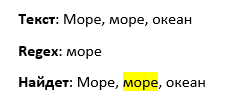
Note that it found 'sea', not the first 'Sea'. Regular expressions are case-sensitive!
Although, of course, there are options. In JavaScript, you can specify an additional flag 'i' to ignore case during the search. In Notepad++ there is also a checkbox 'Match case'. But keep in mind that this is not the default behavior. And you should always check whether your search implementation is case-sensitive or not.
And what if there are multiple occurrences of the word we're looking for?
Text: Sea, sea, sea, ocean
Regex: sea
Will find: Sea, sea, sea, ocean
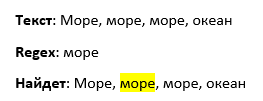
By default, most regex processing engines will return only the first match. In JavaScript there is a flag g (global), which allows you to get an array containing all matches.
What if the word we're looking for is not a standalone word, but part of another word? The regular expression will find it:
Text: Sea, 55seaon, ocean
Regex: sea
Will find: Sea, 55seaon, ocean
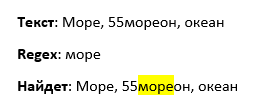
This is the default behavior. For searching, this is actually good. For example, let's say I remember a colleague recently told a story in a chat about an interesting bug in a game. Something related to a ship... But what exactly? I don't remember anymore. How can I find it?
If the search only works for exact matches, I would have to try all the different case endings for the word 'ship'. But if it works by inclusion, I can just omit the ending and still find the text I need:
Regex: ship
Will find:
On the ship
And here's a ship
Of the ship
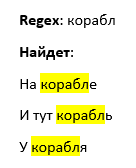
This is static, predefined text. But you can find it without regex. Regular expressions are especially good when we don't know exactly what we're looking for. We know part of a word, or a pattern.
Searching for any character
. — will find any character (one).
Text:
Anya
Asya
Olya
Alya
Valya
Regex: A.ya
Result:
Anya
Asya
OlyaAlya
Valya
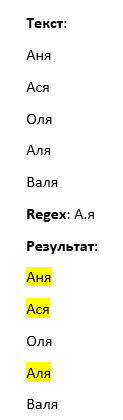
The dot will find absolutely any character, including numbers, special characters, even spaces. So besides normal names, we will also find values like these:
A6ya
A&ya
A ya
Keep this in mind when searching! The dot is a very convenient character, but at the same time very dangerous — if you use it, be sure to test the resulting regular expression. Will it find what you need? And will it not find anything extra?
A dot will also find a dot!
Regex: file.
Will find:
file.txt
file1.txt
file2.xls

But what if we need to find exactly a dot? Let's say we want to find all files with the .txt extension and write this pattern:
Regex: .txt
Result:
file.txt
log.txt
file.png1txt.doc
one_txt.jpg
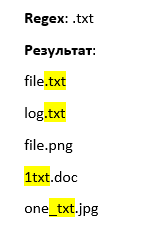
Yes, we found the txt files, but besides them, we also found 'junk' values where the word 'txt' is in the middle of a word. To filter out the unwanted results, we can use the position within the string (we'll talk about that a bit later).
But if we want to find exactly a dot, we need to escape it — that is, add a backslash before it:
Regex: \.txt
Result:
file.txt
log.txt
file.png
1txt.doc
one_txt.jpg
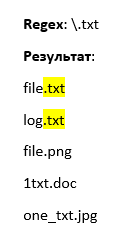
We will do the same with all special characters. Want to find that specific character in the text? Add a backslash before it.
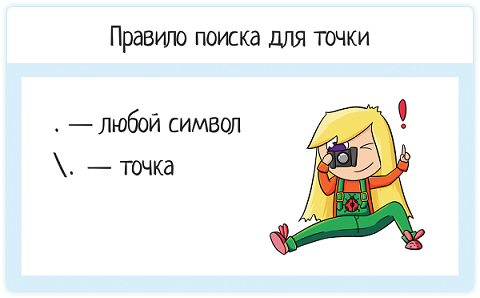
The search rule for a dot:
. — any character
\. — a dot
Searching by a set of characters
Let's say we want to find the names 'Alla', 'Anna' in a list. We could try searching with a dot, but besides the normal names, we'll get all sorts of junk:
Regex: A..a
Result:
Anna
Alla
aoikA74arplt
Arkan
A^&a
Abba
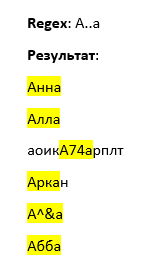
If we want specifically Anna and Alla, instead of a dot, we need to use a range of allowed values. We use square brackets and list the required characters inside them:
Regex: A[nl]a
Result:
Anna
Alla
aoikA74arplt
Arkan
A^&a
Abba
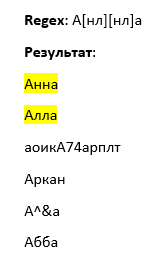
Now the result is much better! Yes, we might still get 'Anla', but we'll fix such errors a bit later.
How do square brackets work? Inside them, we specify a set of allowed characters. This can be a list of specific letters, or a range:
[nl] — only 'n' and 'l'
[а-я] — all lowercase Russian letters from 'а' to 'я' (except 'ё')
[А-Я] — all uppercase Russian letters
[А-Яа-яЁё] — all Russian letters
[a-z] — lowercase Latin letters
[a-zA-Z] — all English letters
[0-9] — any digit
[В-Ю] — letters from 'В' to 'Ю' (yes, a range is not just from A to Z)
[А-ГO-Р] — letters from 'А' to 'Г' and from 'О' to 'Р'
Note — if we are listing possible options, we do not put any separators between them! No space, no comma — nothing.
[abc] — only 'a', 'b', or 'c'
[a b c] — 'a', 'b', 'c', or a space (which can lead to undesirable results)
[a, b, c] — 'a', 'b', 'c', a space, or a comma
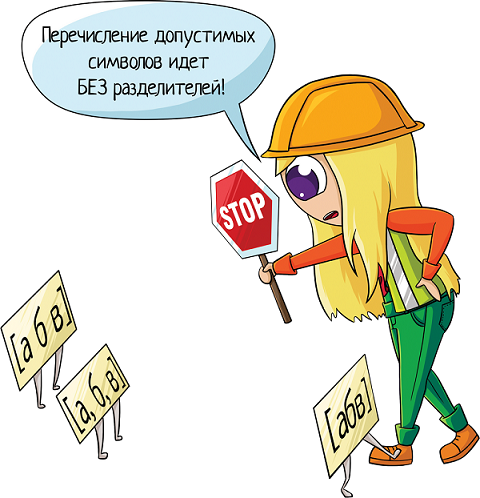
The only allowed separator is a hyphen. If the system sees a hyphen inside square brackets, it means it's a range:
The character before the hyphen is the start of the range
The character after is the end
One character! Not two or ten, but one! Keep this in mind if you want to write something like [1-31]. No, this is not a range from 1 to 31, this notation is read as:
A range from 1 to 3
And the number 1
Here, the absence of separators plays a cruel trick on our minds. It seems like we wrote a range from 1 to 31! But no. Therefore, if you write regular expressions, it is very important to test them. We are testers for a reason! Check what you've written! Especially if you are trying to delete something with a regular expression =)) You wouldn't want to delete too much...
Specifying a range instead of a dot helps to filter out obviously bad data:
Regex: A.ya or A[a-z]ya
Result for both:
Anya
Asya
Alya
Result for 'A.ya':
A6ya
A&ya
A ya
^ inside [] means exclusion:
[^0-9] — any character except digits
[^ёЁ] — any character except the letter 'ё'
[^а-в8] — any character except the letters 'а', 'б', 'в' and the digit 8

For example, we want to find all txt files, except for those split into pieces — ending with a digit:
Regex: [^0-9]\.txt
Result:
file.txt
log.txt
file_1.txt
1.txt
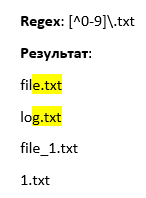
Since square brackets are special characters, they cannot be found in text without escaping:
Regex: fruits[0]
Will find: fruits0
Will not find: fruits[0]
This regular expression says 'find me the text 'fruits', and then the number 0'. The square brackets are not escaped, which means there will be a set of allowed characters inside.

If we want to find exactly the 0th element of the fruits array, we need to write it like this:
Regex: fruits\[0\]
Will find: fruits[0]
Will not find: fruits0
And if we want to find all elements of the fruits array, we put unescaped square brackets inside the escaped ones!
Regex: fruits\[[0-9]\]
Will find:
fruits[0] = “orange”;
fruits[1] = “apple”;
fruits[2] = “lemon”;
Will not find:
cat[0] = “Cheshire cat”;
Of course, 'reading' such a regular expression becomes a bit difficult, with so many different characters written...
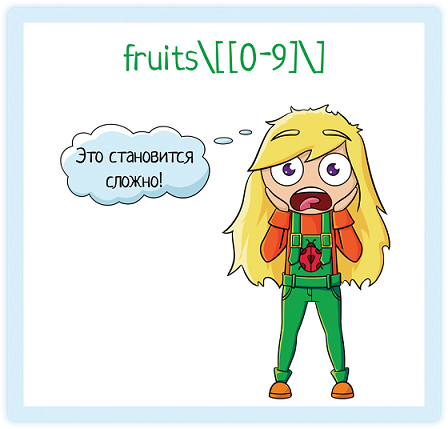
Don't panic! If you see a complex regular expression, just break it down into parts. Remember the basis of effective time management? You have to eat an elephant one bite at a time.
Let's say a mountain of emails has piled up after your vacation. You look at it and immediately fall into despair:
— Ugh, I'll never finish this in a day!

The problem is that the weight of the task hinders your work. We understand that it will take a long time. And we don't want to do a big task... So we postpone it, and take on smaller tasks. In the end, yes, the day has passed, and we haven't finished.
But if you don't waste time thinking 'how long will this take me', and instead focus on the specific task (in this case — the first email in the pile, then the second...), you'll have cleared it all before you know it!
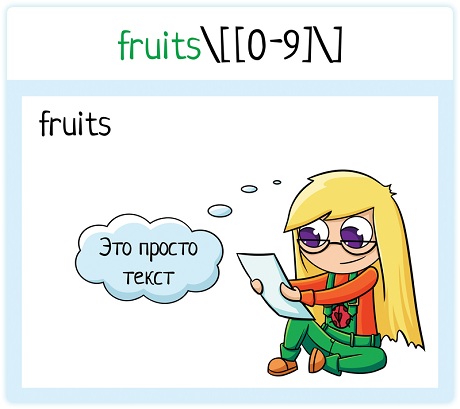
Let's break down the regular expression — fruits\[[0-9]\]
First comes the simple text — 'fruits'.
Then a backslash. Aha, it's escaping something.
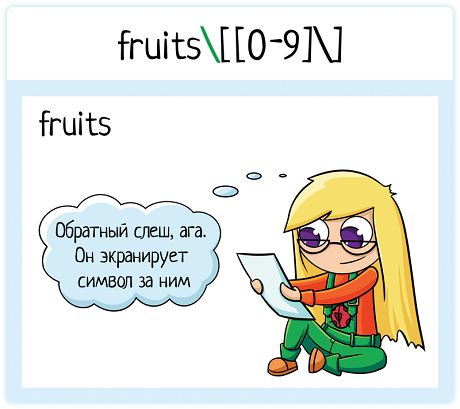
What exactly? A square bracket. So, it's just a square bracket in my text — 'fruits['

Next is another square bracket. It's not escaped — so it's a set of allowed values. We look for the closing square bracket.
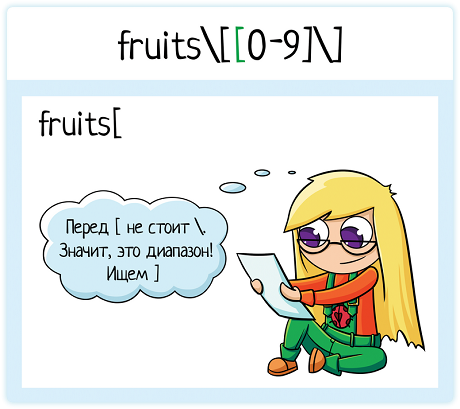
Found it. Our set is: [0-9]. That is, any number. But only one. It can't be 10, 11, or 325, because square brackets without a quantifier (we'll talk about them later) replace exactly one character.
So far we have: fruits['any single-digit number'
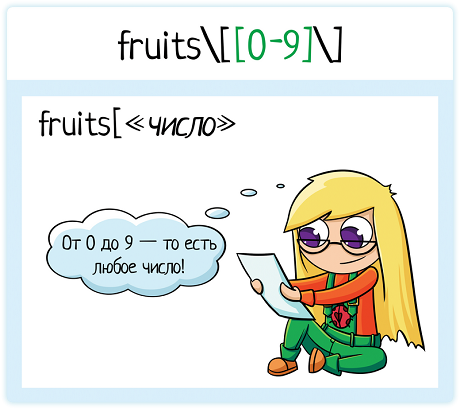
Then another backslash. This means the special character following it will be just a character in my text.

And the next character is ]
The expression becomes: fruits['any single-digit number']
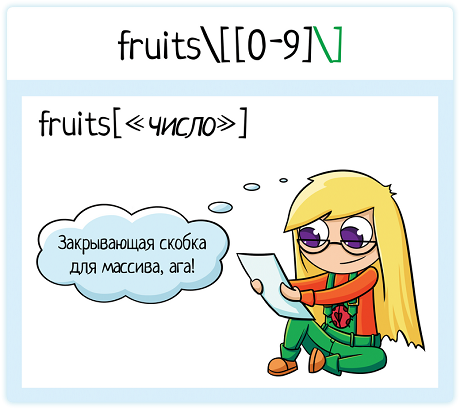
Our expression will find the values of the fruits array! Not just the zeroth, but also the first, and the fifth... Up to the ninth:
Regex: fruits\[[0-9]\]
Will find:
fruits[0] = “orange”;
fruits[1] = “apple”;
fruits[9] = “lemon”;
Will not find:
fruits[10] = “banana”;
fruits[325] = “ apricot ”;
To find all array values, see further in the section 'quantifiers'.
For now, let's see how we can find all dates using ranges.

What is the pattern for a date? We will consider DD.MM.YYYY:
2 digits for the day
dot
2 digits for the month
dot
4 digits for the year
Let's write it as a regular expression: [0-9][0-9]\.[0-9][0-9]\.[0-9][0-9][0-9][0-9].
Let me remind you that we cannot write the range [1-31]. Because that would mean not 'a range from 1 to 31', but 'a range from 1 to 3, plus the number 1'. So we write a pattern for each digit separately.
In principle, such an expression will find dates for us among other text. But what if we are using a regex to validate a date entered by a user? Would such a regex be suitable?
Let's test it! How about the year 8888 or the 99th month, huh?
Regex: [0-9][0-9]\.[0-9][0-9]\.[0-9][0-9][0-9][0-9]
Will find:
01.01.1999
05.08.2015
Will also find:
08.08.8888
99.99.2000
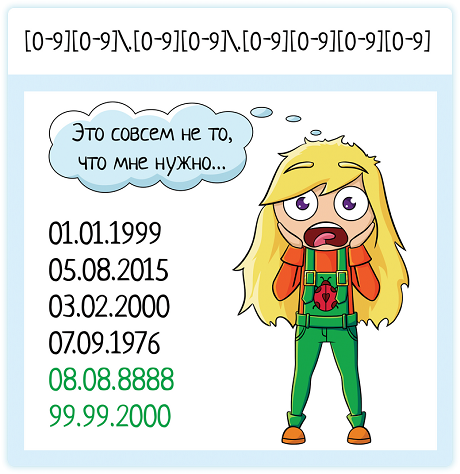
Let's try to limit it:
The day of the month can be a maximum of 31 — the first digit is [0-3]
The maximum month is 12 — the first digit is [01]
The year is either 19.. or 20.. — the first digit is [12], and the second is [09]
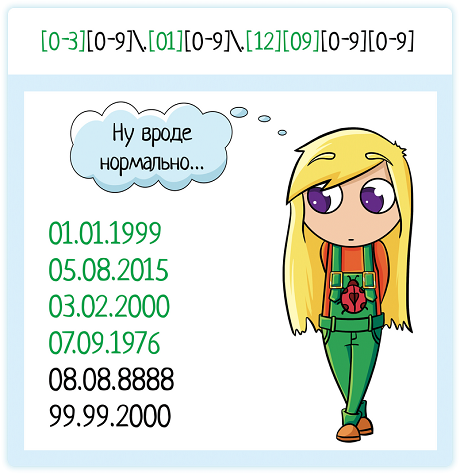
There, that's better, the regex has filtered out obviously bad data. Admittedly, it will filter out a lot of test data, because usually when people want to break things, they specifically use '9999' for the year or '99' for the month...
However, if we look more closely at the regular expression, we can find holes in it:
Regex: [0-3][0-9]\.[0-1][0-9]\.[12][09][0-9][0-9]
Will not find:
08.08.8888
99.99.2000
But will find:
33.01.2000
01.19.1999
05.06.2999
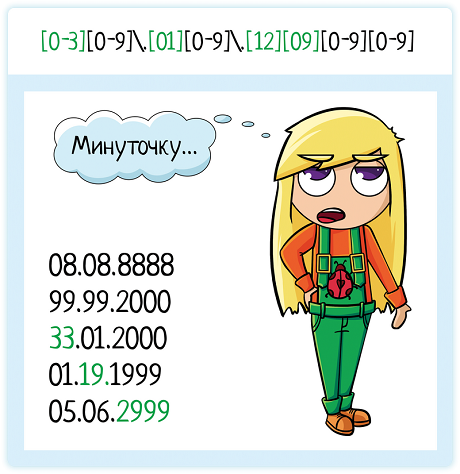
We cannot specify the allowed values with a single range. We will either lose the number 31 or allow 39. And if we want to validate a date, ranges alone are not enough. We need the ability to list options, which we will talk about now.
Enumerating options
Square brackets [] help to list options for a single character. If we want to list words, it's better to use the vertical bar — |.
Regex: Olya|Olechka|Kotik
Will find:
Olya
Olechka
Kotik
Will not find:
Olenka
Kotenka
You can also use the vertical bar for a single character. You can even use it inside a word — in that case, put the variable letter in parentheses
Regex: A(n|l)ya
Will find:
Anya
Alya
Parentheses denote a group of characters. In this group, we have either the letter 'n' or the letter 'l'. Why are parentheses needed? To show where the group begins and ends. Otherwise, the vertical bar will apply to all characters — we would be searching for either 'An' or 'lya':
Regex: An|lya
Will find:
Anya
Alya
Olya
Malyulya
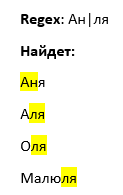
And if we want specifically 'Anya' or 'Alya', we use the enumeration only for the second character. To do this, we put it in parentheses.
These 2 options will return the same thing:
A(n|l)ya
A[nl]ya
But for replacing a single letter, it's better to use [], as comparison with a character class is simpler than processing a group with checks for all its possible modifiers.
Let's return to the task of 'validating a user-entered date using regular expressions'. We tried to write the range [0-3][0-9] for the day, but it allows values like 33, 35, 39... This is not good!
Then let's write down the requirements in more detail. So... If the first digit is:
0 — the second can be from 1 to 9 (the date cannot be 00)
1, 2 — the second can be from 0 to 9
3 — the second is only 0 or 1
Let's create regular expressions for each point:
0[1-9]
[12][0-9]
3[01]
And now all that's left is to combine them into one expression! We get: 0[1-9]|[12][0-9]|3[01]
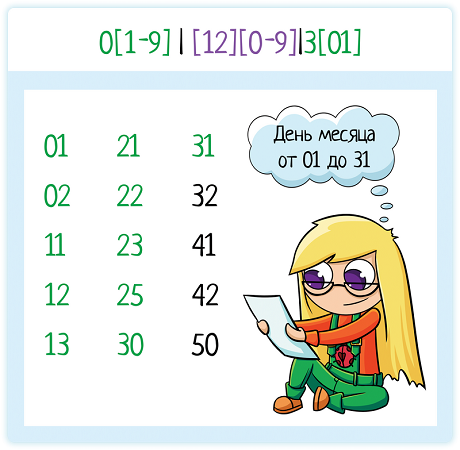
By analogy, we break down the month and year. But that's left for you as homework =)
Then, when we've written the regexes separately for the day, month, and year, we put it all together:
(<day>)\.(<month>)\.(<year>)
Note — we put each part of the regular expression in parentheses. Why? To show the system where the choice ends. Look, let's say for the month and year we have the expression:
[0-1][0-9]\.[12][09][0-9][0-9]
Let's substitute what we wrote for the day:
0[1-9]|[12][0-9]|3[01]\.[0-1][0-9]\.[12][09][0-9][0-9]
How is this expression read?
OR 0[1-9]
OR [12][0-9]
OR 3[01]\.[0-1][0-9]\.[12][09][0-9][0-9]
See the problem? The number '19' will be considered a valid date. The system doesn't know that the alternation with | ended at the dot after the day. For it to understand this, you need to put the alternation in parentheses. Just like in mathematics, we separate the terms.
So remember — if an alternation occurs in the middle of a word, it must be enclosed in parentheses!
Regex: A(nn|ll|lin|ntonin)a
Will find:
Anna
Alla
Alina
Antonina
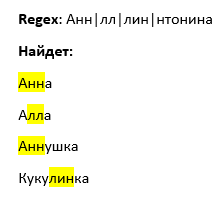
Without parentheses:
Regex: Ann|ll|lin|ntonina
Will find:
Anna
Alla
Annushka
Kukulinka
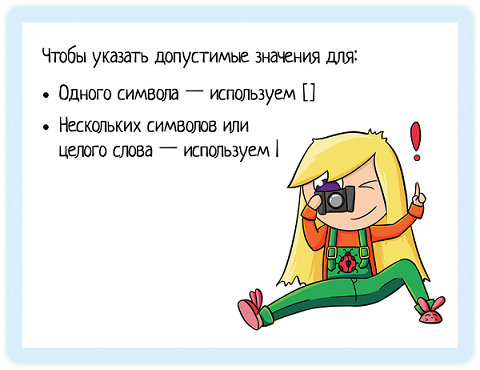
So, if we want to specify allowed values:
For a single character — use []
For multiple characters or a whole word — use |
Metacharacters
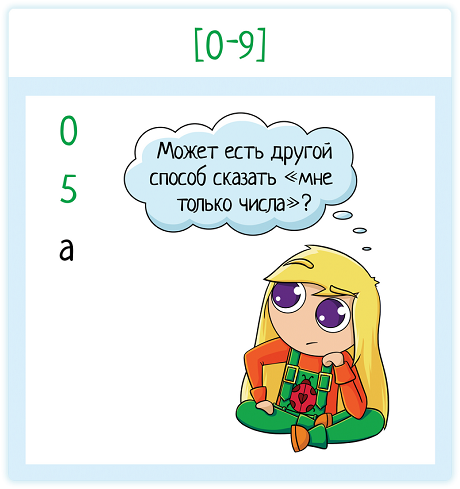
If we want to find a number, we write the range [0-9].
If a letter, then [а-яА-ЯёЁa-zA-Z].
Is there another way?
Yes! Regular expressions use special metacharacters that represent a specific range of values:
Character | Equivalent | Explanation |
\d | [0-9] | Digit character |
\D | [^0-9] | Non-digit character |
\s | [ \f\n\r\t\v] | Whitespace character |
\S | [^ \f\n\r\t\v] | Non-whitespace character |
\w | [[:word:]] | A letter, digit, or underscore character |
\W | [^[:word:]] | Any character except a letter, digit, or underscore |
. |
| Any character at all |
These are the most common characters that you will use most often. But let's understand the 'equivalent' column. For \d, everything is clear — it's just some numbers. But what are 'whitespace characters'? They include:
Character | Explanation |
| Space |
\r | Carriage return (CR) |
\n | Line feed (LF) |
\t | Tab |
\v | Vertical tab |
\f | Form feed |
[\b] | Backspace (deletes 1 character) |
Of these, you will most often use the space and the line break — the expression '\r\n'. Let's write text on several lines:
First line
Second line
For a regular expression, this is:
First line\r\nSecond line
But what is a backspace in text? How can you even see it? It's like if you write a character and then delete it. In the end, the character is gone! Is the deletion stored somewhere in memory? But then that would be terrible, we wouldn't be able to find anything — how would we know how many times the text was corrected and where there is now an invisible [\b] character?
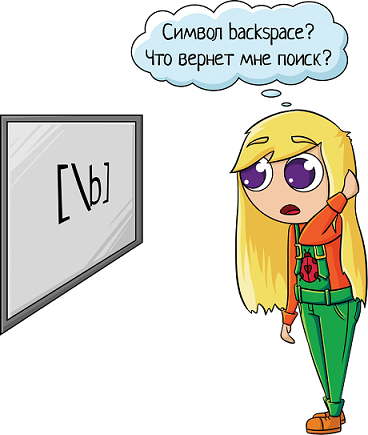
Breathe out — this character will not find all the places where text was corrected. The backspace character is simply an ASCII character that can appear in text (ASCII code 8, or 10 in octal). You can 'create' it by writing in the browser console (which uses JavaScript):
console.log("abc\b\bdef");
Command result:
adef
We wrote 'abc', and then deleted 'b' and 'c'. As a result, the user doesn't see them in the console, but they are there. Because we explicitly wrote the text deletion character in the code. We didn't just delete the text, we wrote this character. This is the kind of character that the regular expression [\b] will find.
See also:
What's the use of the [\b] backspace regex? — more about this character
But usually, when we type \s, we mean a space, a tab, or a line break.
Okay, we've figured out these equivalents. But what does [[:word:]] mean? This is one way to replace a range. To make it easier to remember, they wrote the values in English, combining characters into classes. What classes are there:
Character class | Explanation |
[[:alnum:]] | Letters or digits: [а-яА-ЯёЁa-zA-Z0-9] |
[[:alpha:]] | Only letters: [а-яА-ЯёЁa-zA-Z] |
[[:digit:]] | Only digits: [0-9] |
[[:graph:]] | Only visible characters (spaces, control characters, etc. are not included) |
[[:print:]] | Visible characters and spaces |
[[:space:]] | Whitespace characters [ \f\n\r\t\v] |
[[:punct:]] | Punctuation marks: ! " # $ % & ' ( ) * + , \ -. / : ; < = > ? @ [ ] ^ _ ` { | } |
[[:word:]] | A letter, digit, or underscore: [а-яА-ЯёЁa-zA-Z0-9_] |
Now we can rewrite the regex for date validation, which will select only dates in the DD.MM.YYYY format, filtering out everything else:
[0-9][0-9]\.[0-9][0-9]\.[0-9][0-9][0-9][0-9]
↓
\d\d\.\d\d.\d\d\d\d
You have to agree, the notation with metacharacters looks much nicer =))
Special characters
Most characters in a regular expression represent themselves, with the exception of special characters:
[ ] \ / ^ $ . | ? * + ( ) { }
These characters are needed to denote a range of allowed values or the boundary of a phrase, specify the number of repetitions, or do something else. In different types of regular expressions, this set varies (see 'flavors of regular expressions').
If you want to find one of these characters within your text, you need to escape it with the \ character (backslash).
Regex: 2\^2 = 4
Will find: 2^2 = 4
You can escape an entire sequence of characters by enclosing it between \Q and \E (but not in all flavors).
Regex: \Q{who's there?}\E
Will find: {who's there?}
Quantifiers (number of repetitions)
Let's make the task more complex. We have some text, and we need to extract all email addresses from it. For example:
test@mail.ru
olga31@gmail.com

How is a regular expression constructed? You need to carefully study the data you want to get as output and create a pattern based on it. In an email, there are two separators — the 'at' sign '@' and the dot '.'.

Let's write down the requirements for the regular expression:
Letters / digits / _
Then @
Again letters / digits / _
Dot
Letters
So, before the 'at' sign, we clearly have the metacharacter '\w', which will match plain text (test), digits (olga31), and underscores (pupsik_99). But there's a problem — we don't know how many such characters there will be. When searching for a date, everything is clear — 2 digits, 2 digits, 4 digits. But here there can be 2, or 22 characters.
And this is where quantifiers come to the rescue — these are special characters in regular expressions that specify the number of repetitions of text.
The '+' character means 'one or more repetitions', which is exactly what we need! We get: \w+@

After the 'at' sign, there's \w again, and again one or more repetitions. We get: \w+@\w+\.
After the dot, there are usually just letters, but for simplicity, we can write \w again. And again we expect several characters, without knowing exactly how many. So we get an expression that will find an email of any length:
Regex: \w+@\w+\.\w+
Will find:
test@mail.ru
olga31@gmail.com
pupsik_99_and_slonik_33_and_mikky_87_and_kotik_28@yandex.megatron
What other quantifiers are there besides the '+' sign?
Quantifier | Number of repetitions |
? | Zero or one |
* | Zero or more |
+ | One or more |
The * character is often used with a dot — when we don't care what text comes before the phrase we're interested in, we replace it with '.*' — any character zero or more times.
Regex: .*\d\d\.\d\d\.\d\d\d\d.*
Will find:
01.01.2000
Come to the birthday party on 09.08.2015! It will be fun!
But be careful! If you use '.*' everywhere, you can get a lot of false positives:
Regex: .*@.*\..*
Will find:
test@mail.ru
olga31@gmail.com
pupsik_99@yandex.ru
But will also find:
@yandex.ru
test@.ru
test@mail.
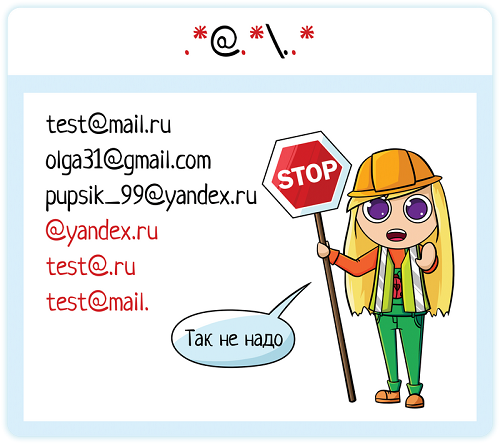
It's better to use \w, and a plus sign instead of an asterisk.
But if we want to find all log files that are numbered — log, log1, log2... log133, then * will work well:
Regex: log\d*\.txt
Will find:
log.txt
log1.txt
log2.txt
log3.txt
log33.txt
log133.txt
And the question mark (zero or one repetition) will help us find people with a specific last name — both men and women:
Regex: Nazina?
Will find:
Nazin
Nazina
If we want to apply a quantifier to a group of characters or several words, they need to be enclosed in parentheses:
Regex: (Heehee)*(Haha)*
Will find:
HeeheeHaha
HeeheeHeeheeHeehee
Heehee
Haha
HeeheeHeeheeHahaHahaHaha
(emptiness — yes, this regex will find that too)
Quantifiers apply to the character or group in parentheses that precedes them.
What if I need a specific number of repetitions? Let's say I want to write a regular expression for a date. So far, we only know the option of 'listing the required metacharacter the required number of times' — \d\d\.\d\d\.\d\d\d\d.
Okay, a repetition of 2-4 times is fine, but what if it's 10? What if you need to repeat a phrase? Should you write it 10 times? Not very convenient. And you can't use *:
Regex: \d*\.\d*\.\d*
Will find:
.0.1999
05.08.20155555555555555
03444.025555.200077777777777777
To specify a specific number of repetitions, you need to write it inside curly braces:
Quantifier | Number of repetitions |
{n} | Exactly n times |
{m,n} | From m to n, inclusive |
{m,} | At least m |
{,n} | At most n |
Thus, for date validation, you can use either listing \d n times, or using a quantifier:
\d\d\.\d\d\.\d\d\d\d
\d{2}\.\d{2}.\d{4}
Both notations are valid. But the second one is a bit easier to read — you don't have to count the repetitions yourself, you just look at the number.
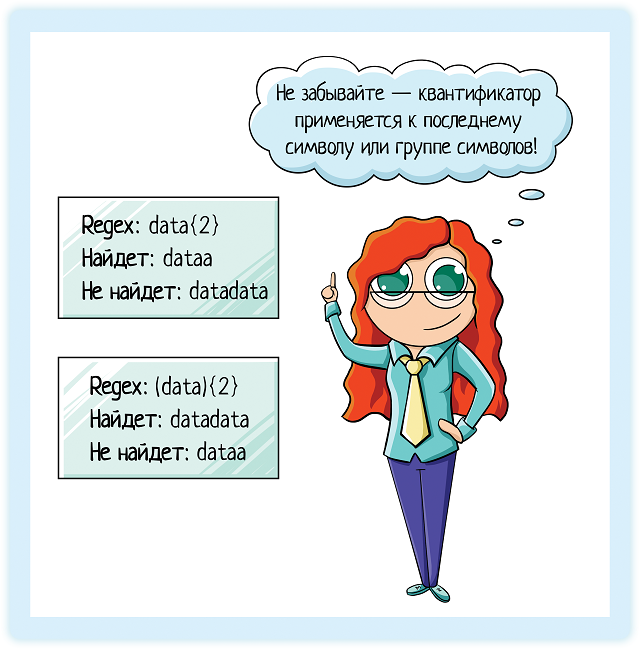
Don't forget — the quantifier applies to the last character!
Regex: data{2}
Will find: dataa
Will not find: datadata
Or to a group of characters, if they are enclosed in parentheses:
Regex: (data){2}
Will find: datadata
Will not find: dataa
Since curly braces are used to specify the number of repetitions, if you are looking for a curly brace in the text, you need to escape it:
Regex: x\{3\}
Will find: x{3}
Sometimes a quantifier doesn't find exactly what we need.
Regex: <.*>
Expectation:
<req>
<query>Ан</query>
<gender>FEMALE</gender>
Reality:
<req> <query>Ан</query> <gender>FEMALE</gender></req>
We want to find all HTML or XML tags individually, but the regular expression returns the entire string, which contains several tags.
Let me remind you that in different implementations, regular expressions can work slightly differently. This is one of the differences — in some implementations, quantifiers match the longest possible string. Such quantifiers are called greedy.

If we realize that we haven't found what we wanted, we can go two ways:
Account for characters that do not match the desired pattern
Define the quantifier as non-greedy (lazy) — most implementations allow this by adding a question mark after it.
How to account for characters? For the example with tags, you can write this regular expression:
<[^>]*>
It looks for an opening tag, inside of which is anything except the closing tag '>', and only then does the tag close. This way we prevent it from capturing too much. But keep in mind that using lazy quantifiers can lead to the opposite problem — when the expression matches a string that is too short, in particular, an empty string.
Greedy | Lazy |
* | *? |
+ | +? |
{n,} | {n,}? |

There is also possessive quantification, also called jealous. But you can read about it on Wikipedia =)
Position within a string
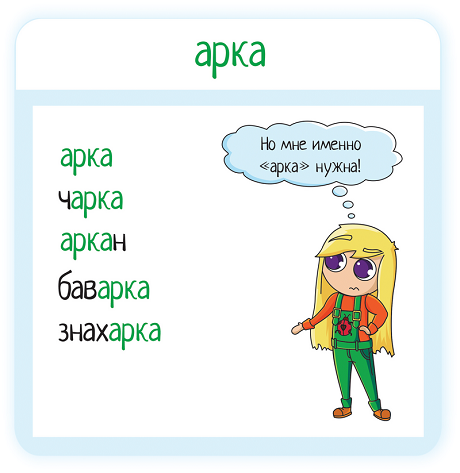
By default, regular expressions search by 'inclusion'.
Regex: arch
Will find:
arch
charka
arkan
bavarka
znakharka
This is not always what we need. Sometimes we want to find a specific word.
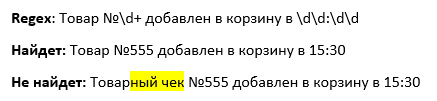
If we are not looking for a single word, but a certain string, the problem can be solved with spaces:
Regex: Product No.\d+ added to cart at \d\d:\d\d
Will find: Product No.555 added to cart at 15:30
Will not find: Sales receipt No.555 added to cart at 15:30
Or like this:
Regex: .* arch .*
Will find: The Triumphal Arch was...
Will not find: The healer today...
What if there isn't a space next to the word we're looking for? It could be a punctuation mark: 'And here before us is an arch.', or '...arch:'.
If we are looking for a specific word, we can use the metacharacter \b, which denotes a word boundary. If we put the metacharacter at both ends of the word, we will find exactly that word:
Regex: \barch\b
Will find:
arch
Will not find:
charka
arkan
bavarka
znakharka

You can limit it only at the beginning — 'find all words that start with a certain value':
Regex: \barch
Will find:
arch
arkan
Will not find:
charka
bavarka
znakharka
You can limit it only at the end — 'find all words that end with a certain value':
Regex: arch\b
Will find:
arch
charka
bavarka
znakharka
Will not find:
arkan
If we use the metacharacter \B, it will find a NON-word boundary:
Regex: \Bacr\B
Will find:
zakroyka
Will not find:
acr
acryl
If we want to find a specific phrase, not a word, we use the following special characters:
^ — start of text (line)
$ — end of text (line)
If we use them, we can be sure that nothing extra has crept into our text:
Regex: ^I found it!$
Will find:
I found it!
Will not find:
Look! I found it!
I found it! Look!
Summary of metacharacters denoting string position:
Character | Meaning |
\b | word boundary |
\B | Not a word boundary |
^ | start of text (line) |
$ | end of text (line) |
Using backreferences
Let's say while testing an application, you found a funny bug in the text — a duplicated preposition 'on': 'Congratulations! You have advanced on on to a new level'. And then you decided to check if there are other such errors in the code.

The developer provided a file with all the texts. How to find repetitions? Using a backreference. When we put something in parentheses within a regular expression, we create a group. Each group is assigned a number by which it can be referenced.
Regex: [ ]+(\w+)[ ]+\1
Text: Congratulations! You have advanced on on to a new level. So so we smile and and wave.

Let's figure out what this regular expression means:
[ ]+ → one or more spaces, this is how we delimit the word. In principle, this can be replaced with the metacharacter \b.
(\w+) → any letter, digit, or underscore. The '+' quantifier means the character must appear at least once. And the fact that we've enclosed this whole expression in parentheses means it's a group. Why do we need it? We don't know yet, as there's no quantifier next to it. So, it's not for repetition. But in any case, the found character or word is group 1.
[ ]+ → again, one or more spaces.
\1 → repetition of group 1. This is the backreference. This is how it's written in JavaScript.
Important: the syntax for backreferences heavily depends on the regular expression implementation.
PL | How a backreference is denoted |
JavaScript vi | \ |
Perl | $ |
PHP | $matches[1] |
Java Python | group[1] |
C# | match.Groups[1] |
Visual Basic .NET | match.Groups(1) |
What else are backreferences used for? For example, you can check HTML markup to see if it's correct. Is it true that the opening tag equals the closing tag?

Write an expression that will find correctly written tags:
<h2>Заголовок 2-ого уровня</h2>
<h3>Заголовок 3-ого уровня</h3>
But will not find errors:
<h2>Заголовок 2-ого уровня</h3>
Lookaheads and lookbehinds
You might also need to find a certain place in the text, but without including the found word in the match. For this, we 'look around' the surrounding text.
Representation | Lookaround type | Example | Match |
(?=pattern) | Positive lookahead | Dish(?=11) |
Dish11 Dish113
|
(?!pattern) | Negative lookahead (with negation) | Dish(?!11) | Dish1
Dish511 |
(?<=pattern) | Positive lookbehind | (?<=Olga )Nazina | Olga Nazina
|
(?<!pattern) | Negative lookbehind (with negation) | (see image below) |
Anna Nazina |
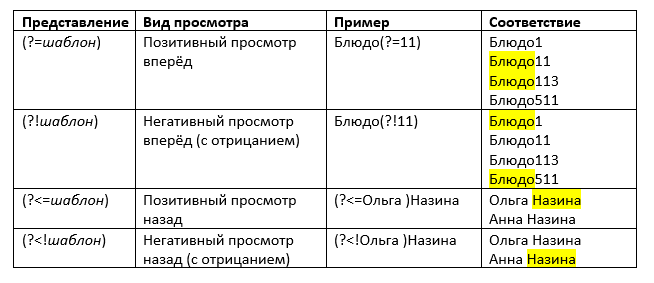
Replacement
An important function of regular expressions is not only to find text, but also to replace it with other text! The simplest replacement option is word for word:
RegEx: Olga
Replacement: Makar
Original text: Hello, Olga!
New text: Hello, Makar!
But what if our source text can contain any name? Whatever the user entered is what was saved. And now we need to replace it with Makar. How to do such a replacement? Using the dollar sign. Let's take a closer look at it.

The dollar sign in a replacement is a reference to a group in the search. We put a dollar sign and the group number. A group is what we put in parentheses. Group numbering starts from 1.
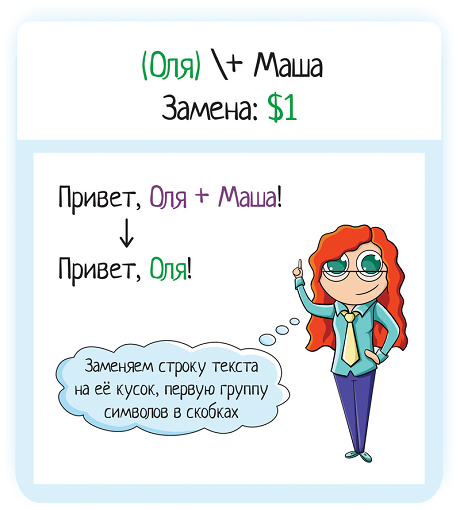
RegEx: (Olya) \+ Masha
Replacement: $1
Original text: Olya + Masha
New text: Olya
We were looking for the phrase 'Olya + Masha' (the parentheses are not escaped, which means they shouldn't be in the searched text, it's just a group). And we replaced it with the first group — what is written in the first parentheses, i.e., the text 'Olya'.
This also works when the searched text is inside other text:
RegEx: (Olya) \+ Masha
Replacement: $1
Original text: Hello, Olya + Masha!
New text: Hello, Olya!
You can put each part of the text in parentheses, and then vary and swap them:
RegEx: (Olya) \+ (Masha)
Replacement: $2 - $1
Original text: Olya + Masha
New text: Masha — Olya
Now let's return to our task — there is a greeting string 'Hello, someone!', where any name can be written (even just numbers instead of a name). We want to replace this name with 'Makar'.
We need to keep the text around the name, so we put it in parentheses in the regular expression, creating groups. And we reuse them in the replacement:
RegEx: ^(Hello, ).*(!)$
Replacement: $1Makar$2
Original text (either/or):
Hello, Olga!
Hello, 777!
New text:
Hello, Makar!
Let's figure out how this regular expression works.
^ — start of the line.
Next is a parenthesis. It's not escaped, so it's a group. Group 1. Let's find its closing parenthesis and see what's inside this group. Inside the group is the text 'Hello, '

After the group comes the expression '.*' — zero or more repetitions of anything. That is, any text at all. Or emptiness, that's also included in the regex.

Then another opening parenthesis. It's not escaped — aha, so this is the second group. What's inside? Inside is the simple text '!'.
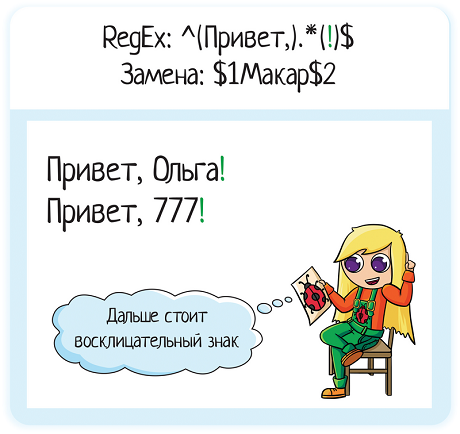
And then the $ character — end of the line.
Let's see what we have in the replacement.
$1 — the value of group 1. That is, the text 'Hello, '.
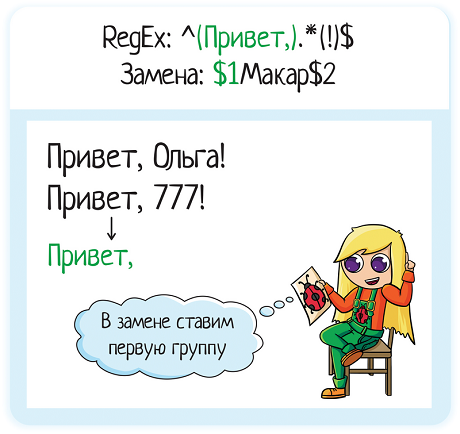
Makar is just text. Note that we either include the space after the comma in group 1, or we put it in the replacement after '$1', otherwise we'll get 'Hello,Makar' as output.
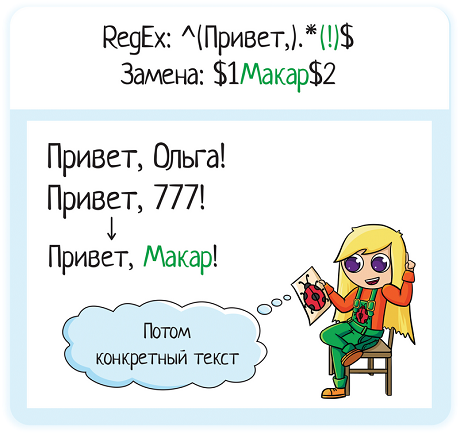
$2 — the value of group 2, i.e., the text '!'

And that's it!
What if we need to reformat dates? We have dates in DD.MM.YYYY format, and we need to change the format to YYYY-MM-DD.

We already have the regular expression for searching — '\d{2}\.\d{2}\.\d{4}'. Now we just need to figure out how to write the replacement. Let's look closely at the requirements:
DD.MM.YYYY
↓
YYYY-MM-DD
From this, it's immediately clear that we need to define three groups. It turns out like this: (\d{2})\.(\d{2})\.(\d{4})
As a result, we first have the year — this is the third group. We write: $3
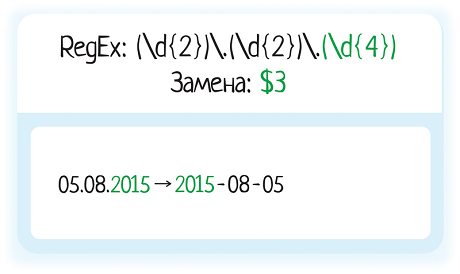
Then comes a hyphen, which is just text: $3-
Then comes the month. This is the second group, i.e., '$2'. We get: $3-$2
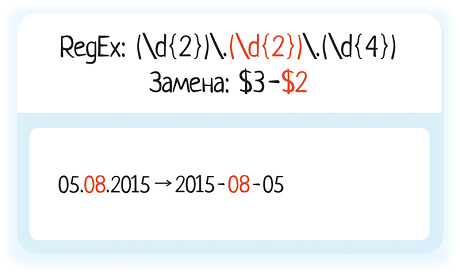
Then another hyphen, just text: $3-$2-
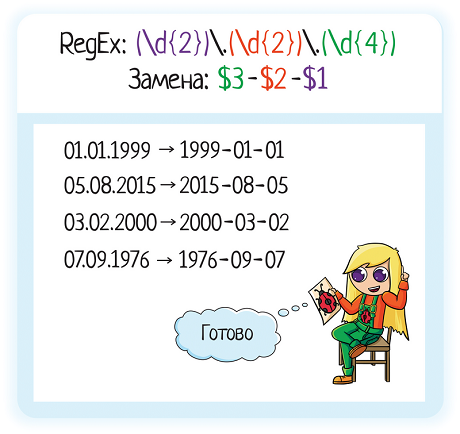
And finally, the day. This is the first group, $1. We get: $3-$2-$1

And that's it!
RegEx: (\d{2})\.(\d{2})\.(\d{4})
Replacement: $3-$2-$1
Original text:
05.08.2015
01.01.1999
03.02.2000
New text:
2015-08-05
1999-01-01
2000-02-03
Another example — I write down in a notepad what I managed to do during a 12-week cycle. The file is called 'done', and it's very motivating! If you just try to remember 'what have I done?', you remember very little. But here, you write it down and admire the list.
Here's an example of improvements for my course for testers:
Created messages for the bot — so that it posts new topics to the chat when they are released
Folks — corrected the 'Advanced Search' article, removed the part about empty input in simple search, as it was confusing
Updated the bit about the Cinderella effect (rewrote it for YouTube)
And there are about 10-25 of these. In one cycle. And in a year? Wow! They seem like small improvements, but they add up to a lot.
So, when the cycle ends, I write a blog post about my successes. To insert the list into the blog, I need to remove the numbering — then I'll do it using the blogger's tools and it will look nicer.

I delete it using a regular expression:
RegEx: \d+\. (.*)
Replacement: $1
Original text:
1. One
2. Two
New text:
One
Two
I could have done it manually. But for a list of more than 5 items, it's incredibly boring and tedious. But this way, I just press one button in the notepad — and it's done!
So regular expressions can even help when writing an article =)
Related articles and books
Books
Sams Teach Yourself Regular Expressions in 10 Minutes. By Ben Forta — I highly recommend it! A truly excellent book where everything is simple, accessible, and understandable. It costs 100 rubles, but provides a sea of benefits.
Articles
Wiki — https://ru.wikipedia.org/wiki/Регулярные_выражения. Yes, this is the one you will read most often. I don't remember all the metacharacters by heart myself. So when I use regex, I google them, and Wikipedia is always at the top of the results. And the article itself is good, with convenient tables.
Regular expressions for beginners — https://tproger.ru/articles/regexp-for-beginners/
Summary
Regular expressions are a very useful thing for a tester. They have many applications, even if you are not an automation engineer and are in no hurry to become one:
Find all necessary files in a folder.
Grep logs — filter out all the noise and find only the information that is currently interesting to you.
Check the database for obviously incorrect records — is there any test data left in production? Is a related system sending some junk instead of normal data?
Check data from another system if it exports it to a file.
Proofread a file of texts for a website — are there any duplicated words?
Correct text for an article.
...

If you know that there is a regular expression in your program's code, you can test it. You can also use regex inside your autotests. Although you should be careful here.
Don't forget the joke: 'A developer had a problem and he decided to solve it with regular expressions. Now he has two problems.' This can happen, of course. Just like with any other code.

Therefore, if you write a regex, be sure to test it! Especially if you are writing it in conjunction with the rm command (deleting files in Linux). First, check if the search works correctly, and only then delete what you found.

A regular expression might not find what you expected. Or it might find something extra. Especially if you have a chain of regexes. Do you think it's that easy to write a regex correctly? Then try to solve this puzzle from Egor or these crosswords =)
PS — find more useful articles on my blog under the 'useful' tag. And useful videos — on my YouTube channel