
A guide to analyzing network traffic using Wireshark
1. What is Wireshark?

Wireshark is a widely used tool for capturing and analyzing network traffic, actively used for both educational purposes and for troubleshooting computer or network issues. Wireshark works with almost all OSI model protocols, has a user-friendly interface, and a convenient data filtering system. In addition, the program is cross-platform and supports the following operating systems: Windows, Linux, Mac OS X, Solaris, FreeBSD, NetBSD, OpenBSD.
In this guide, we will cover the main functionality of Wireshark, relate it to the OSI model, learn how to analyze network traffic, and secure our presence on the global Internet.
2. How to install Wireshark?
First, we need to download and install Wireshark. Since the program is distributed under the GNU GPL v2 license (i.e., it can be freely distributed), it is easy to find any version of the program freely available. In this guide, we will use the functionality of an earlier version of the program (1.12.3). This is because this version has the SSL protocol built-in, which is used in Chapter 6. Installing an earlier version simplifies the preparation for working with the program, which is why we chose it. You can find the installer on the official website.
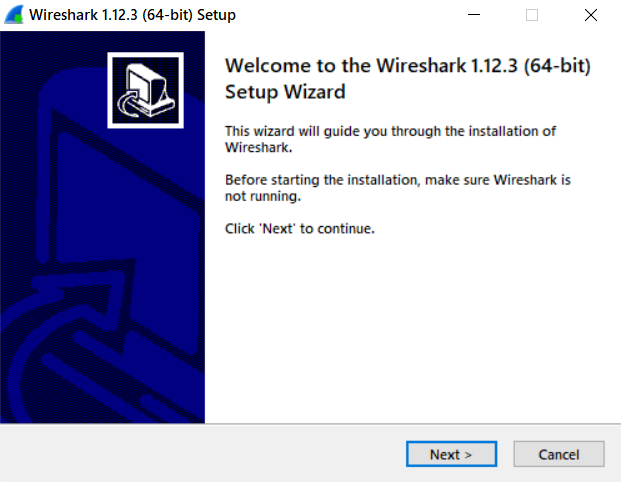
The rest of the installation is simple – just click "Next" - "Next" - "Next".
After a successful installation, a Wireshark shortcut will appear on your desktop. We can now start exploring its functionality!
3. How to use Wireshark?
One of the main features of the program is network traffic capture. Therefore, you first need to learn how to capture your network's traffic.
Let's start the program! We are immediately greeted by the start menu, where you can see the available computer interfaces for capture, guides from the program developers, and many other interesting things.
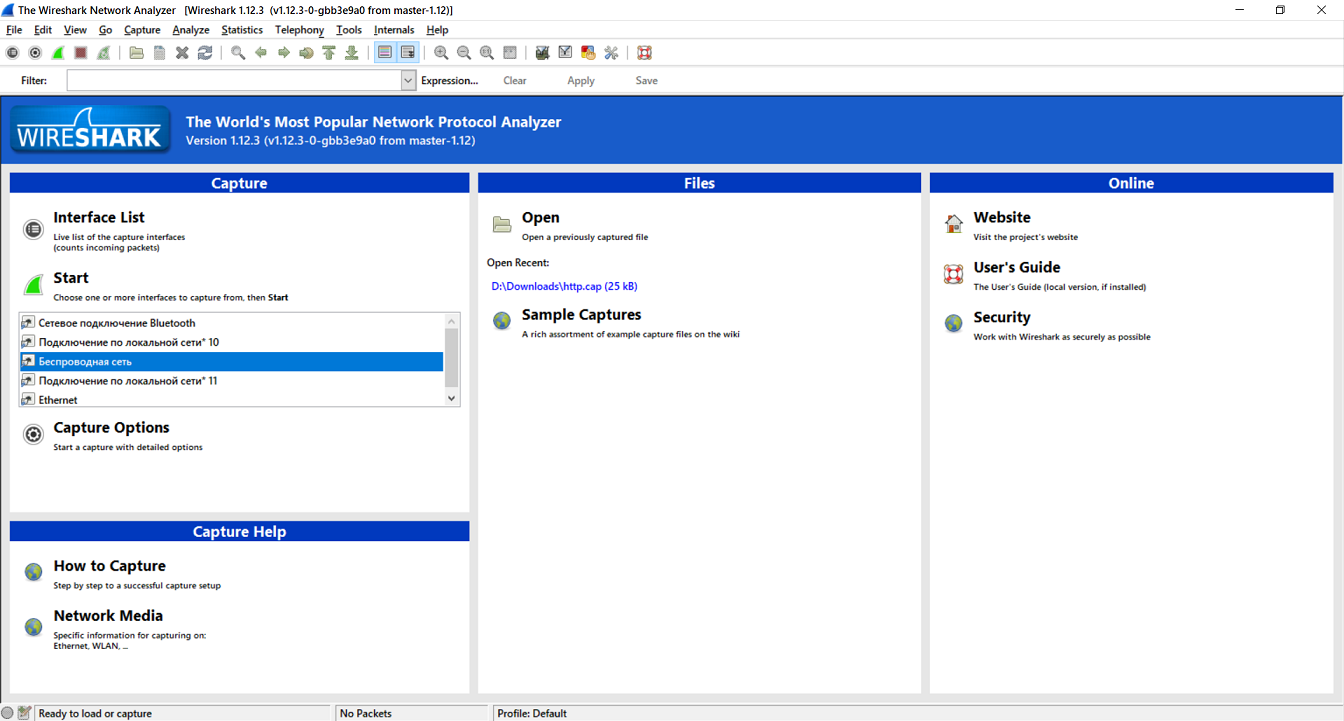
From all of this, we need to pay attention to this area of the program.
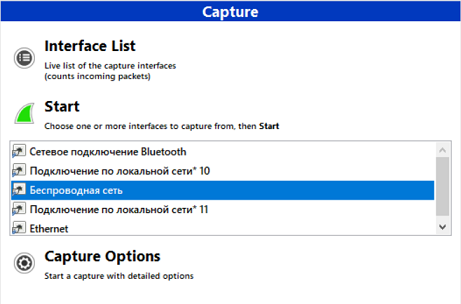
Here you need to select the network interface through which you are connected to the Internet.
A network interface is software that interacts with the network driver and the IP layer. It provides the IP layer with access to all available network adapters whose traffic we will be intercepting. Most often in Wireshark, you will encounter wireless (Wi-Fi) and wired (Ethernet) network interfaces.
This guide uses Wi-Fi, so we will capture the "Wireless Network" and then click "Start".
If you have selected the correct interface, you will see the following.
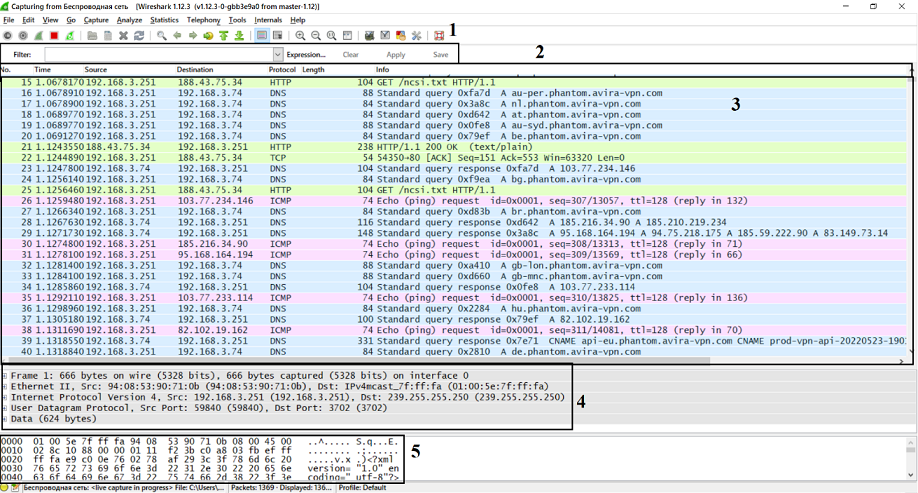
Let's examine this window in more detail according to the points indicated on it:
Filter bar, which allows you to find the necessary information. It is described in more detail in the fifth chapter of the guide.
Header bar, which divides the information from item 3 into number, time since the start of capture, source and destination, as well as the protocol used, packet size, and brief information about the network packet.
Packet list pane, which updates in real time. Here, packet information is divided into columns defined in the header bar.
Packet details pane, which describes the OSI model layers of the selected network packet.
Packet bytes pane, which presents data in hexadecimal code and characters.
Congratulations! You have successfully captured your network traffic. Now you can see the data packets passing through the network, as well as some information about them: sender and receiver addresses, protocols used, and packet content.
Now you can start analyzing the network traffic.
4. How to find hidden information?
Before starting traffic analysis, you need to have a basic knowledge of the OSI network model protocols. Reading the Wikipedia article is sufficient.
Many programs use the HTTP protocol to transfer information, which allows receiving various resources from the Internet and back. Let's look at one of the packets transmitted via the HTTP protocol.
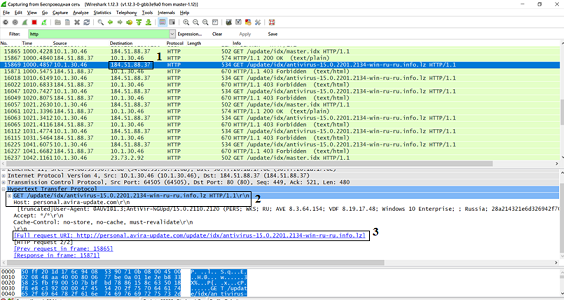
The HTTP protocol uses GET requests (for retrieving data) and POST requests (for sending data) to transfer data.
In the figure, in field 1, we see the recipient's IP address (in this case, my computer's address). In field 2, we learn that the antivirus server sent a GET request to request some data about my computer. This is necessary for the program to update correctly. And in field 3, we see what this request looks like as a URL (Internet link).
A small homework assignment!
To reinforce the material, try to analyze any HTTP protocol packet on your computer and try to explain why it was sent.
5. How to find the necessary packets among all the others?
While doing the homework, you might have had trouble finding the required packet. Wireshark has a solution for this – filtering! In the special "Filter" field, you can enter the necessary commands or use the suggestions.
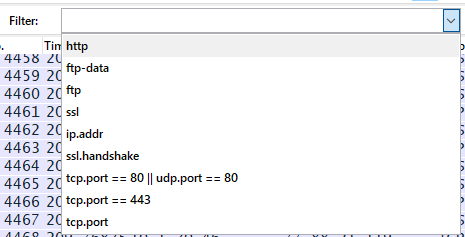
The most common types of filtering are by IP address, port number, and protocol. Let's see how it's done.
Filtering by IP address allows us to view all packets coming from or going to someone. For example, let's select all packets coming from the IP address 10.1.30.46 by entering "ip.src == x.x.x.x" in the filter.

You can also filter network traffic by the recipient's IP address using the command "ip.dst == x.x.x.x".
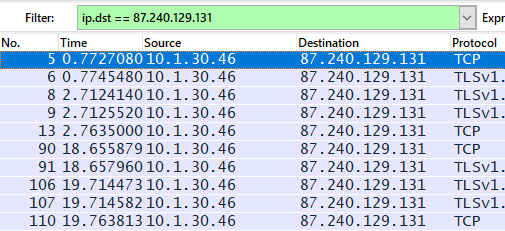
Additionally, you can see packets regardless of the traffic direction using "ip.addr == x.x.x.x".
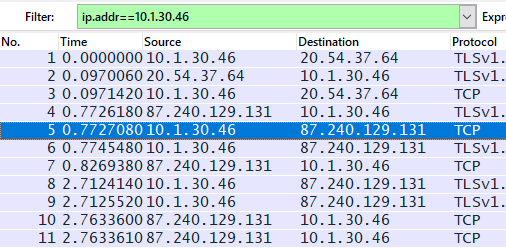
To filter by port number, use ".port = x" after the protocol name. For example, to view TCP port 80, used for unencrypted HTTP traffic, we use the command "tcp.port == 80".
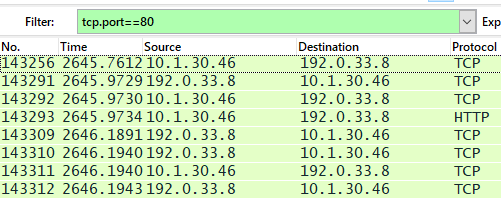
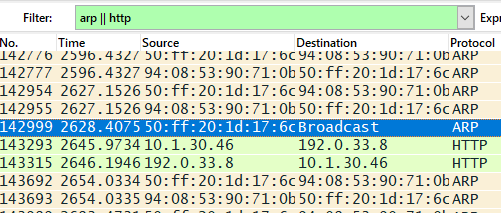
And finally, to filter traffic by the protocols used by the packets, you just need to enter the protocol name.
Note that filters can be combined using the logical operators AND "and/&&", OR "or/||", and NOT "not/!"
Another homework assignment!
To practice finding the necessary information, try to see the number of packets for a particular protocol and think about why there are so many of them.
6. How to intercept data transmitted over secure communication channels?
Having understood the basic functionality of Wireshark, we can move on to more complex and useful things.
Data transmission on the global Internet is insecure, especially if it is not protected in any way. Modern browsers use the SSL/TLS protocol, which encrypts information and allows it to be transmitted securely.
Sometimes a user or system administrator needs to check traffic for suspicious activity or for the correct operation of a program. This creates the need to decrypt intercepted secure traffic.
First, let's understand how the SSL/TLS protocol works. Before exchanging encrypted data, a connection establishment process is used, also called a handshake.
During the handshake phase, the client and server authenticate each other (verify authenticity), exchange information about their capabilities, and only then begin to negotiate a shared session key.
There are many algorithms for negotiating over an unsecured communication channel. The choice is made from a list of algorithms supported by the client during the initial stage of the handshake.
The most common session key exchange algorithm is RSA. Let's look at an infographic describing how the algorithm works.

During the handshake, the client creates a random number, called the pre-master secret, and sends it encrypted with the server's public key. Then, both sides convert the pre-master secret into the master secret and create a session key, which is used for further information exchange.
Now let's try to intercept secure information in Wireshark. We will perform preparatory actions, namely, check the algorithm used for negotiating session keys and configure the browser. First, we find the handshake using the filter by entering "ssl.handshake" and check the server's message.
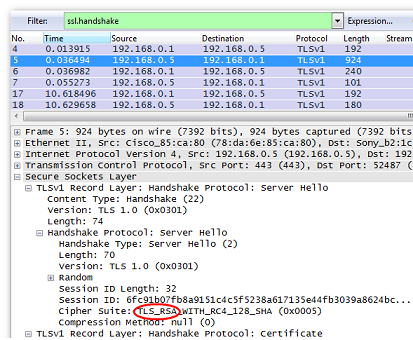
In the "Cipher Suite" field, we can see "TLS_RSA". This means we can proceed with the next steps.
Configuring the browser in the Windows operating system is quite simple. Open the computer properties, then "Advanced system settings" and select "Environment Variables...".
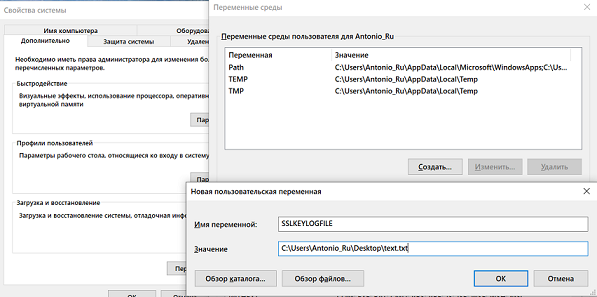
Add a new user variable "SSLKEYLOGFILE" and specify the path to the file where we want to save it.
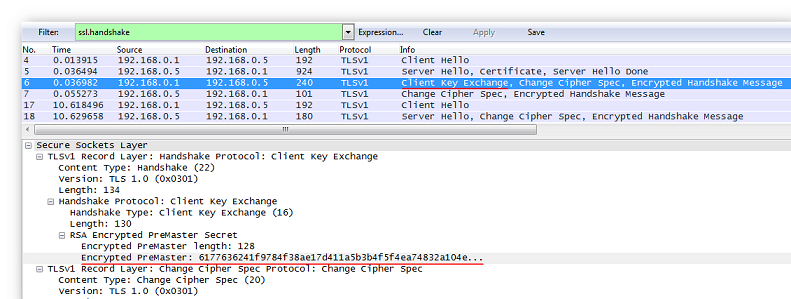
Let's look at the client's response message: it contains the encrypted value of the current session's pre-master secret.
Next, let's configure Wireshark. Use the key combination "Ctrl+Shift+P" to open the "Preferences" menu, then expand the "Protocols" branch and select "SSL".
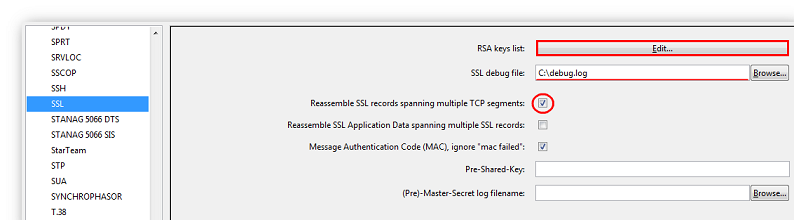
Check that the necessary fields shown in the picture are set, and click the "Edit" button. In the window that appears, click the "New" button and fill in the following fields: IP Address (the SSL server's IP address), Port (the SSL server's port), Protocol (the protocol using SSL encryption. If unknown, specify 'data'), Key File (the path to the file with the server's secret key, which we specified in the Environment Variables), and Password (if the secret key is password-protected).
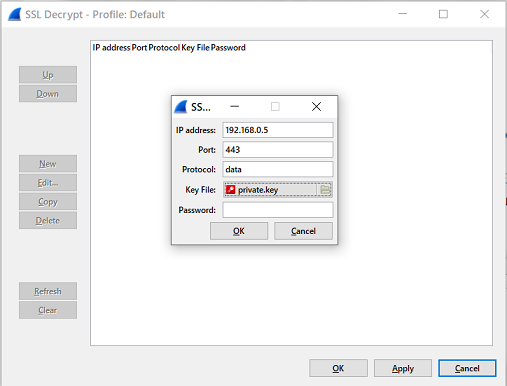
Now you can confirm the settings and start viewing the decrypted traffic. Don't forget to use the filter!
Reinforcing the material!
Try to connect to a website's server on your own and see what packets your computer exchanges with it.
7. What possibilities does capturing secure traffic offer?
Capturing secure traffic offers many possibilities. One of them is intercepting HTTPS requests from users connected to the network. Let's see how to do this and what result we will get.
First, repeat the steps from the previous section, but for the SSL server's IP address, specify the address of the desired website. The HTTP data transfer protocol is often used to transmit passwords. We already talked about the methods it uses in Chapter 4. To filter HTTP traffic by method, you can use the command "http.request.method == \"method_name\"". Since we want to intercept data sent from the client to the server, we will look at POST requests. To do this, apply the filter "http.request.method == \"POST\"".

By performing these simple actions, we have obtained important data from another user. Therefore, it should be remembered that public networks are insecure and pose a threat even to secure traffic.
A little practice!
Try to capture the secure traffic of an email server and log in using your username and password. Find the POST request and see what's inside.
Most likely, the important data will be encrypted. This is how the email service protects your data, but the risk of being hacked still remains.
8. How can the OSI model and Wireshark be related?
Having reviewed all the functionality of Wireshark, we can relate it to the OSI network model. But first, we should recall what this model represents.
OSI is a set of network protocols through which various network devices interact with each other. The model defines seven layers of system interaction. Let's look at the table of OSI model layers.
Layer | Data Type | Functions | Examples |
7. Application | Data | Access to network services | HTTP, FTP |
6. Presentation | Data | Data representation and encryption | ASCII, JPEG |
5. Session | Data | Managing the communication session | RPC, PAP |
4. Transport | Segments | Direct communication between endpoints and reliability | TCP, UDP |
3. Network | Packets | Route determination and logical addressing | IPv4, IPv6, ICMP |
2. Data Link | Frames | Physical addressing | Ethernet, ARP |
1. Physical | Bits | Working with the transmission medium, signals, and binary data | USB, RJ |
Now let's relate these layers to Wireshark. Let's consider the most frequently encountered protocols in traffic analysis, namely HTTP, TCP, and ICMP.
The HTTP protocol in Wireshark has 4 OSI model layers, namely Application (Hypertext Transfer Protocol), Transport (TCP), Network (IPv4), and Data Link (Ethernet II).
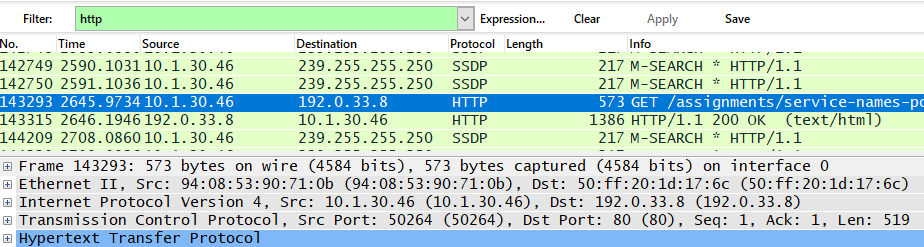
The TCP protocol has 3 OSI model layers, which include Transport (TCP), Network (IPv4), and Data Link (Ethernet II).

The ICMP protocol has only 2 OSI model layers: Network (IPv4) and Data Link (Ethernet II).
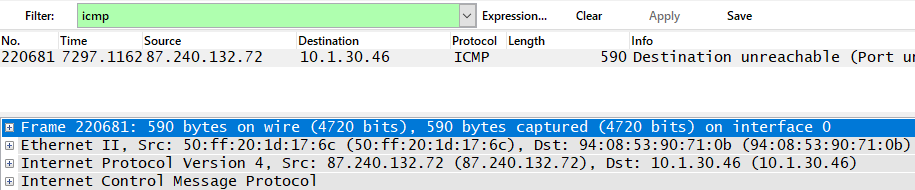
In total, Wireshark defines only 5 OSI model layers: Application, Transport, Network, Data Link, and Physical. Depending on the protocol, you can see different layers.
Conclusion
After reading this guide, we have learned how to analyze traffic, find hidden information, and intercept secure information. For future information security specialists, these are very important skills that will definitely be useful in the future and will serve as a foundation for future professional development.