
Against the backdrop of last year's escalation of censorship in the Russian Federation, the articles by MiraclePTR were a breath of freedom for many Russian-speaking IT folks. I want to open the door to free information a bit wider and invite “non-techies” (“dummies”) who want to spin up a personal proxy server to bypass censorship but feel lost in the flood of information or got stopped by a confusing technical error.
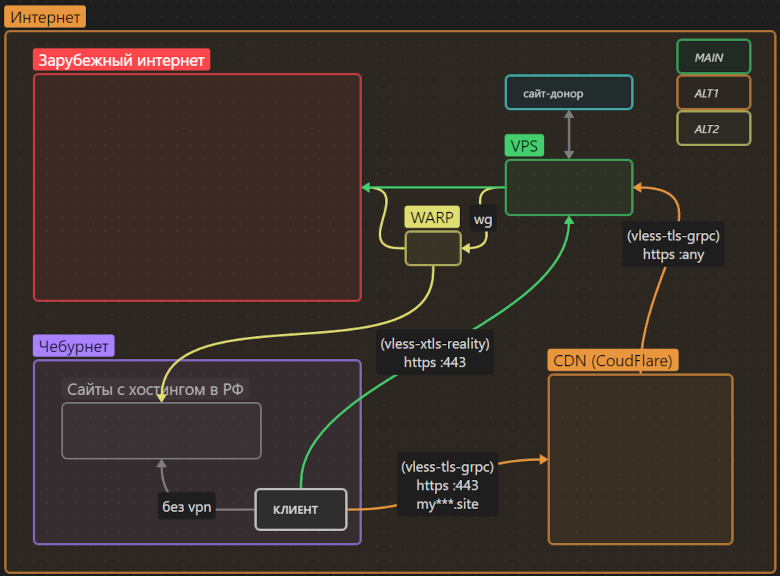
In this article I’ve described a universal solution that provides transparent access to the global internet bypassing censorship, uses cutting-edge traffic obfuscation, doesn’t depend on a single corporation, and most importantly has ample “safety margin” against interference from censors.
This article is aimed at “dummies” unfamiliar with the subject area. However, people “in the know” may also find something useful (for example, a slightly simpler setup for proxying via CloudFlare without having to run nginx on the VPS).
If you still don’t have a personal proxy to bypass censorship—this is your sign.
TL;DR; The universal solution:
A VPS in Europe, the 3X-UI panel to manage Xray, a VLESS-Reality proxy for a direct connection, a VLESS-tls-grpc proxy as a fallback via the CloudFlare CDN, Russian traffic goes directly — or via the VPS->WARP chain, access to services blocked in Europe — via the VPS->WARP chain
Foreword
A couple of months ago, in the Amnezia Telegram chat discussing censorship circumvention, a no-name brought up the example of “a dentist from Chertanovo” who would like to spin up his own server but “couldn’t hack” the techy articles, isn’t ready to Google errors, and just needs a clear manual: do this and it will work.
I’m kind of a “dentist from Chertanovo” myself: I haven’t worked in IT for over 15 years.
I remember how a couple of years ago I bought a virtual server “to play with” and was afraid to type commands there, so it idled for the whole paid period. But eventually, censorship circumvention became my hobby, I figured things out, and now I’m writing this piece with my past self in mind: back then I would have been glad to find an instruction like this.
I consider the proposed solution universal. That’s my subjective opinion backed by my own experience as well as that of like‑minded folks (not all of them:) from the TG chat where we discuss setting up and operating various proxies and VPNs. (note this is a chat, not a channel; I’m not its owner/moderator and it’s not monetized at the moment. Just a place to ask questions and share experience on the topic.)
Surely there will be readers who find the solution in this article excessive—or, conversely, insufficient (if so—feel free to jump into the comments). Still, I dare claim that once you set up a proxy following this guide, you’ll forget about censorship issues for a long time.
It takes me about half an hour to follow this guide; for someone totally new to the topic—couple of evenings.
I ask the techies to forgive me for describing some points overly in detail: one of the goals here is to raise IT literacy among non‑IT people.
You’ll find the actual step‑by‑step guide in the second part of the article. First I’ll orient those who want to understand the current landscape and justify the choices used.
Theory (1/3) Censorship on the internet
Censorship in Russia
There are both judicial and extrajudicial blocks in Russia. You can look up explicitly blocked resources on the Roskomnadzor (RKN) website. Such resources include, for example, the well‑known: Instagram, Facebook, RuTracker.
Extrajudicial blocks are more interesting. Around Russia’s “perimeter” there are already “black boxes”—RKN equipment—“TSPU” that censors all traffic crossing the border over wires. TSPU stands for Technological Means of Threat Prevention: anything RKN deems a “threat” can be quietly blocked. Thus, for example, they currently extrajudicially block the HideMy.name service; in the summer of 2023 they blocked popular protocols OpenVPN and WireGuard, and in the fall—in southern regions— blocked virtually all “unknown” TCP traffic. In other words, not only resources but also protocols of data transmission are subject to blocking.
Many extrajudicial blocks are turned on and off seemingly at random.
Moreover, extrajudicial blocking is being carried out by ISPs as well: there is evidence of extrajudicial traffic censorship within the country. Whether they do it on their own or TSPU devices (controlled by RKN) are also installed on internal backbones—I don’t know.
Finally, beyond blocking, RKN can “slow down” some resources, for example twitter. It’s possible that YouTube will share the same fate soon (I think it won’t be blocked outright but throttled… although Google itself is already doing a fine job of that). I’d love to be wrong, but if that happens, a personal proxy will be very helpful for comfortable access to the global video library.
And lastly: using censorship‑circumvention tools is not prohibited (not illegal) in Russia at this time.
For completeness, it’s worth mentioning coercive methods of censorship: publishing opinions on certain topics is criminally punishable in Russia, and a proxy won’t help with that. A proxy helps you access already published information.
A lyrical digression
I understand that mentions of censorship traditionally trigger indignation, righteous anger, and condemnation of officials. I see it a bit differently.
At this point in history, censorship de facto is an integral function of any state, and expecting it to vanish today is tilting at windmills. Humanity would have to change a lot before censorship stops being needed to maintain state integrity.
As for me—in today’s reality—I prefer to calmly exercise my right to free access to information (constitution, Article 29) by lawful means available, and—beyond exercising that right—to create what I consider valuable. That is, I invest attention where I’m ready to build in practice, instead of seeking what to condemn and destroy.
Therefore I treat indignation as a signal of unfulfilled potential: if I feel like raging, it means I haven’t realized my creative potential enough. It’s better to channel that energy into creating something valuable than into outrage and condemnation. That’s my personal opinion; I don’t impose it, but perhaps it will help you stay emotionally comfortable when censorship is mentioned and while setting up a proxy to bypass it.
Censorship abroad
In the East — In China, Iran, and Turkmenistan—things are roughly like in Russia—only tougher. By the way, it’s the Chinese experience we’ll use for our proxy.
Whereas in the West censorship plays out more intriguingly:
As far as I know, technical bans on access to unwanted information in the West are minimal and nowhere near Russia’s. Formally, freedom is preserved
Blocking unwanted information happens a bit differently there. I see three main trends:
Manipulating search and social feed results through control over media to promote the desired narrative;
Cultivating a “cancel culture” against dissenters to suppress undesired narratives.
Arguably the main trend: “self‑censorship”: restricting access to oneself from the outside. And there are two reasons for that:
they remove themselves to comply with local laws (Pornhub leaves Montana, GoDaddy leaves Russia etc.)
they remove themselves due to the same “cancel culture”: to manage reputational risk (fear of becoming outcasts among their peers), or out of personal animosity toward a group of people (a desire to cancel someone on their own)
The first two trends are countered by common sense, and the third—by a proxy:).
Good news: practically all technically created barriers to information can be bypassed with a proxy server.
Theory (2/3) - buying a server (VPS) and a domain
To follow this guide you’ll need to buy:
a virtual server abroad (paid monthly or yearly)
a second‑level domain name (one dot), like mypersonalsite.xyz (paid yearly)
I wish I could link to a reliable VPS provider (to make it easier for “dummies” who don’t want to dive into the topic)—but no… I haven’t met a universal hoster. I’ll just outline the criteria, and you’ll have to choose a VPS yourself.
VPS selection criteria
So you need a VPS that meets the following criteria:
Technical specs: 1 CPU, at least 1 GB RAM, at least 5 GB disk. This is usually the cheapest plan.
Traffic—unlimited or very large (e.g., 32 TB per month). Many can get by with 3 TB a month, but not everyone. There are plenty of unlimited options on the market.
Bandwidth: 100 Mbit/s. If your home/work internet is fast, you can look at 1 Gbit/s—those offers exist.
A static IPv4 address (a server with IPv6 but no IPv4 won’t do)
Location (physical server location): Europe. You can pick any country other than Russia, but Europe, as a rule, gives the fastest traffic.
Ability to install the “Debian 12” operating system. This guide is guaranteed to work with Debian 12. If you follow the entire chain on another OS (e.g., Ubuntu), unexpected snags may pop up.
Backups (a paid option with the hoster) are not needed.
A VPS like this typically costs $5 / 500 ₽ per month. Cheaper can be found ($0.99/130₽). A low price may be a sign of unreliability… or not.
And now the flame‑war question: should you buy a VPS from a foreign provider using a foreign card (or crypto), or can you buy from a hoster that accepts Russian cards?
I don’t have a definitive answer. If you don’t mind the hassle, I’d suggest a foreign hoster. Any payment with a Russian card deanonymizes you, and the authorities can find out who paid for the proxy if they want.
On the other hand, a proxy is a means to bypass censorship (which is fully legal at the moment), not a means of anonymity. No proxy guarantees absolute anonymity on the internet, even if you pay with crypto.
Here’s my take: I personally don’t have the goal of “remaining anonymous” and hiding the fact I paid for a server abroad, since my activity doesn’t break Russian laws (again: as of now).
So I pay for a foreign VPS with a Russian card. That works for me, I’m not imposing it, and I’ll likely change it someday.
Same with domain names: you can buy a .ru domain with a Russian card, or any domain (except .ru and .рф) abroad.
Where to buy a VPS?
Foreign hosters:
Google “buy vps”
see the list of recommended hosters from Amnezia.
Ask in the comments or the chat (link at the start of the article).
Reminder: many foreign hosters tend to restrict their services in Russia, so during signup it’s best not to state you’re from Russia.
Russian hosters:
Google “buy vps in europe”
Search on poiskvps. There’s a big selection, though not exhaustive.
Ask in the comments or the chat (link at the start of the article)
Personally I’m renting VPSs from two providers: nuxt and vdsina. Both have their quirks, but not bad enough yet to switch.
Where to buy a domain?
.ru can be had for 119 rubles (I haven’t seen cheaper)—Google it: “register a .ru domain”.
you can buy a foreign one for 99 cents (google: “99 cent domain”)
that’s the first‑year price; renewal is always more, but if you want to save money you can buy a new one each year.
free second‑level domains were available to all as of summer 2023, but that freebie is over—you have to buy now.
Theory (3/3) - the universal solution
So, the goal is to create and configure a proxy: fast and hard to block.
We already know that:
VPN protocols like OpenVPN, WireGuard, IPsec and many others are easy to detect and get periodically blocked.
Encrypted proxy protocols without obfuscation (shadowsocks, vmess, MTProto for Telegram) also get blocked from time to time. If it works today but there have been precedents of blocking—there’s no guarantee it will work tomorrow. Should you rely on something that can stop working at any moment at RKN’s whim? Of course not.
Therefore I use a solution that:
Obfuscates itself. Specifically as the most popular protocol on the internet—HTTPS (vless, trojan, cloak, gost‑tls, openconnect‑tls can do this).
Doesn’t encrypt already encrypted traffic again: so‑called TLS‑in‑TLS can be detected if desired (example), though it requires investment in more expensive TSPU equipment. They already do this in China; likely they’ll learn here too. I know two solutions: vless‑xtls simply doesn’t double‑encrypt, cloak supposedly bypasses this filter through heavy redundancy, but at the cost of low speed.
Pretends to be a real site: Passes the active‑probing test. That’s when the censor connects to your server instead of you and verifies you’re visiting some site rather than using it as a proxy (vless‑xtls‑reality and the same slow cloak can do this).
There’s a great product— Amnezia. It also positions itself as a “universal solution” and supports a suitable protocol (cloak), but I don’t recommend it due to “growing pains”:
A very rough client, especially after the upgrade to version 4: bugs and a misleading UI.
Its only obfuscated protocol (OpenVPN+Cloak) is too slow for comfortable use,
Protocols without obfuscation can compromise the server.
I wish Amnezia success—it really can become a universal solution in the future, but as of today I see only one candidate: the VLESS‑XTLS‑Reality.
UPDATE 11.2024
Since this article was published, Amnezia has learned to support an XRAY server with the VLESS protocol. Of course, there isn’t much freedom of configuration there (no alternate path via CDN or proxying through WARP), but as of today it’s a workable tool, albeit without a “safety margin”.
At the moment vless‑xtls‑reality cannot be detected using DPI (deep packet inspection—even in China). But the censor has other ways to interfere with it. So see the next list:
What you should never do
Don’t compromise your VPS with protocols that can be detected (don’t install WireGuard, OpenVPN, Shadowsocks, …). Some providers already block VPSs that were previously seen running such protocols.
Don’t access the Runet through the VPS, instead visit the Runet directly, bypassing the proxy (easy to set up). In extreme cases, send Russian traffic via the chain Me->VPS->Warp->Runet (also easy to set up). The point is, if traffic crosses Russia’s border twice within a notional second (out and immediately back), the censor may suspect a proxy and block it. They do this in China; here they don’t—yet, but could learn any moment.
Don’t share proxy access with a large number of people. 5–10 close contacts max. In China they already detect anomalous traffic to a server from many users (and block the server); here, again, they could adopt that any time.
If you follow these conditions (in current realities) the server cannot be identified and blocked. Still, I like redundancy, so… in case your VPS gets unexpectedly blocked by IP—there’s a “Plan B”: proxying traffic through a CDN (Content Delivery Network).
CloudFlare CDN
CDNs are built to balance traffic for large sites and consist of hundreds of IP addresses, so the chance they’ll be blocked in Russia is minimal. I use one of the world’s largest CDNs—CloudFlare with the free plan. You’ll attach your purchased domain to CloudFlare to send traffic through it.
Proxying via a CDN is a bit slower than a direct connection to the server. But with a CDN, Roskomnadzor won’t learn your server’s IP at all.
CloudFlare Warp
Warp is a public proxy network by the same company CloudFlare, accessed via the WireGuard VPN protocol. From Russia you can’t connect to Warp, of course, but from a foreign VPS—no problem.
In this setup Warp serves two functions:
An extra tool to bypass Western censorship (if some Western sites don’t welcome requests from your VPS—you’ll be able to reach them via Warp)
Additional protection from blocking: proxying requests from the VPS into the Runet so as not to compromise the VPS in RKN’s eyes. That’s in case you didn’t configure the client app for direct access to RU resources. Of course, not all RU sites are ready to serve requests from abroad; for example, the Russian Post site almost certainly won’t open via Warp, but most RU sites will.
Independence from corporations
If CloudFlare disappears, the whole scheme will continue to work directly, and you’ll still be able to connect to any other CDN (there are dozens), and use any other foreign proxy instead of Warp. But as long as it works—use CloudFlare.
That’s it for theory—on to the how‑to.
Guide (1/6) - setting up the VPS
As soon as you’ve purchased a VPS with a clean Debian 12 preinstalled there (see “Theory pt.2” above)—usually within minutes the provider will give you access to the server. Most often via e‑mail, sometimes in the panel.
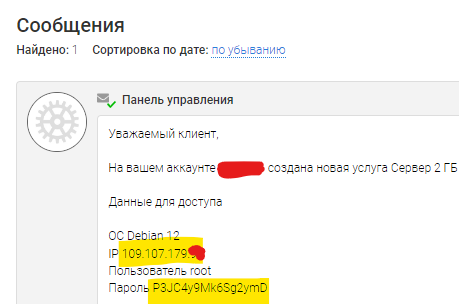
Step 1: Connect to the server via SSH:
Type
ssh root@111.111.111.111in the console (replace the IP with yours).
You can paste the password from the clipboard with RMB; it isn’t shown for security. Sometimes the password pastes correctly only with the English keyboard layout enabled.Or use the “VNC” web interface in the VPS panel
Or use any SSH app
Step 2: Update the system on the server apt update && apt full-upgrade -y (will take a few minutes)
Step 3: Rebootreboot and reconnect via SSH in a minute.
Step 4: Install the required packages:apt install docker.io docker-compose git curl bash openssl nano -y
Step 5: Install the 3X-UI panel version v2.0.2:
git clone https://github.com/MHSanaei/3x-ui.git
cd 3x-ui
nano docker-compose.yml
 # откроется текстовой редактор.
 # в 6 строке замените "latest" на "v2.0.2"
 # было:  image: ghcr.io/mhsanaei/3x-ui:latest
 # стало: image: ghcr.io/mhsanaei/3x-ui:v2.0.2
 # чтобы сохранится, нажмите: CTRL+X, Y, ENTER
docker-compose up -d
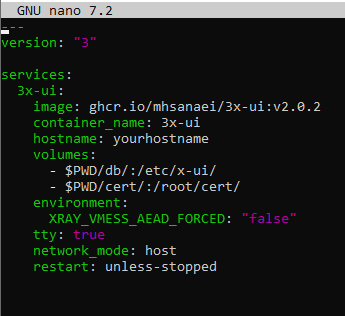
UPD 18.01: The panel author has already released a new version, but the UI and WARP handling logic changed. I wrote the guide and made screenshots specifically with v2.0.2; it’s stable and self‑sufficient. If you’re setting up a proxy for the first time and want to follow the guide—install this version.
Step 6: Install Warp: with the first command remove it (if it was installed by the hoster), with the second install it in compatibility mode with 3x‑ui
warp u
bash <(curl -sSL https://raw.githubusercontent.com/hamid-gh98/x-ui-scripts/main/install_warp_proxy.sh)
During installation the script will ask you for a number; you should answer 40000
Step 7: Generate a self‑signed TLS certificate and copy it into the 3X‑UI panel
openssl req -x509 -newkey rsa:4096 -nodes -sha256 -keyout private.key -out public.key -days 3650 -subj "/CN=APP"
docker cp private.key 3x-ui:private.key
docker cp public.key 3x-ui:public.key
That completes the server setup.
You can tinker further to harden the server and improve obfuscation, but for a “start” I consider it unnecessary. You’ve applied the minimum settings needed for stable operation.
Guide (2/6) - initial 3X‑UI panel setup
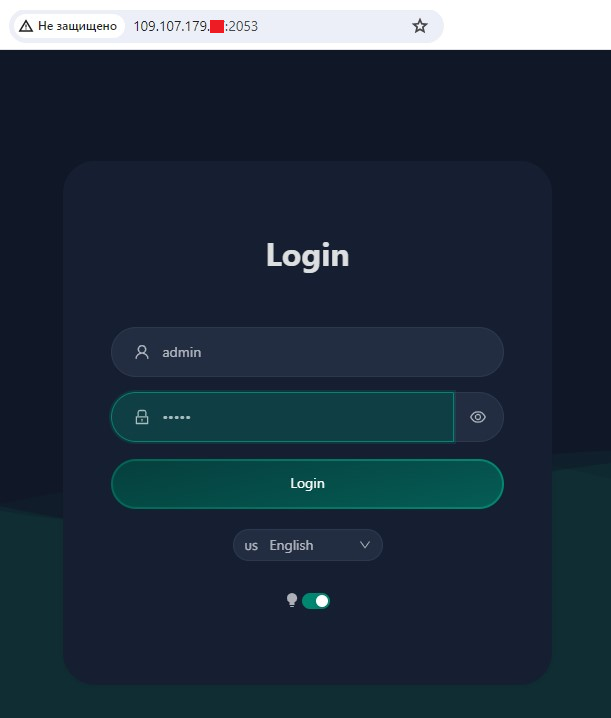
Step 1: Open a browser and go to an address like http://111.111.111.111:2053/ Note the http (not https) at the start (only for the initial step; later it will be https). Replace the IP with yours.
Step 2: Switch the language to English (the Russian translation is poor), dark theme, login:admin, password:admin, and log in (Login button).
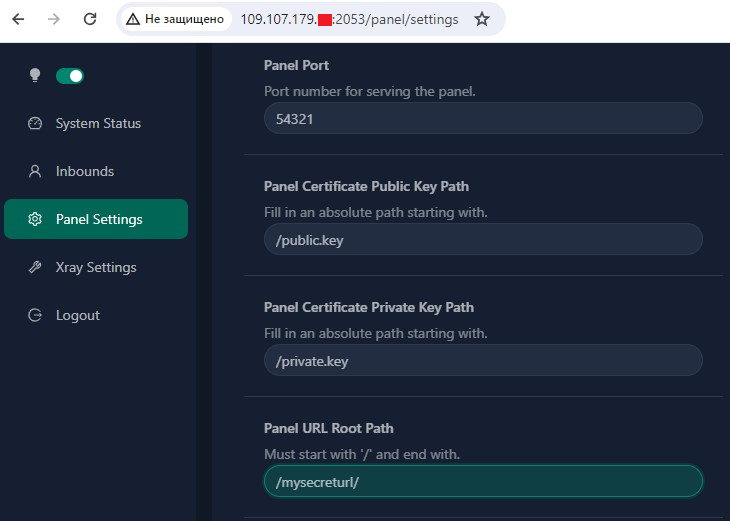
Step 3: In the “Panel Settings” section fill out 4 fields as in the screenshot:
- Panel Port (any random number from 1000 to 65535, except 40000—it’s already taken by Warp; in this guide I’ll use 54321—but come up with your own). Everywhere further on, replace port 54321 with your number.
- Panel Certificate Public Key Path:/public.key
- Panel Certificate Private Key Path:/private.key
- Panel URL Root Path: a secret path string for panel access that starts and ends with “/”. I use/mysecreturl/, but create your own. Everywhere further on, instead of the string/mysecreturl/ use your own.
Finally, save (Save button at the top of the page) and be sure to restart the panel (Restart Panel, Sure).
The browser will show an error. Change port 2053 to 54321 in the address bar and refresh.
The browser will show a second error “Connection is not secure” (that’s because we’re using a self‑signed certificate, but it’s temporary). Click Advanced→Proceed to the site, and you’ll be back in the panel.
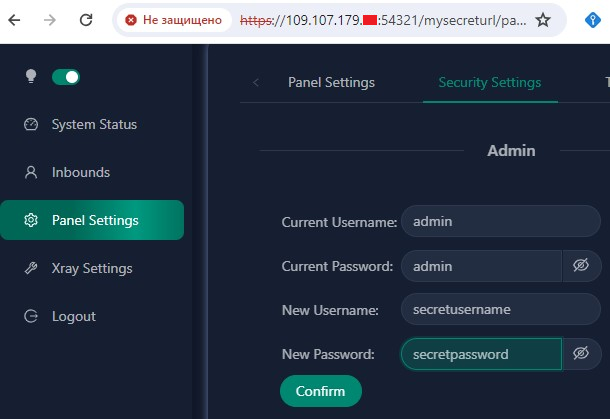
Step 4: In Panel Settings → Security Settings enter the old credentials (admin/admin) and set a new login and password, then click Confirm.
Step 5: Log into the panel again with the new login and password.
The panel will now always be available at an HTTPS URL like:https://111.111.111.111:54321/mysecreturl/ (where IP, Port, and Path are your own).
Save the panel access URL, login, and password somewhere.
Guide (3/6) - configuring Xray
Xray is the proxy server managed by the 3X‑UI panel. Xray is what supports the VLESS protocol with obfuscation.
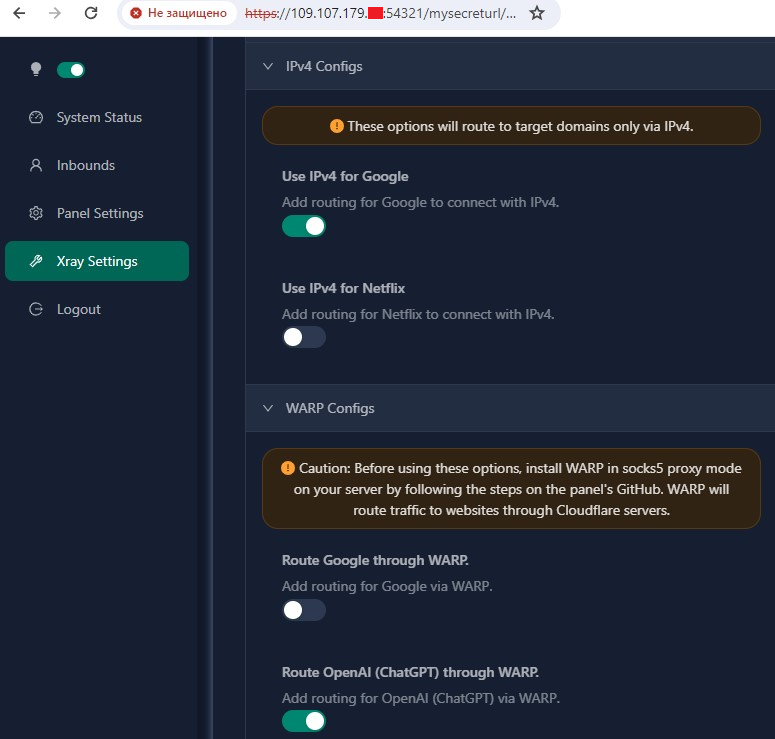
Step 1: In the panel go to “Xray Settings” and enable two options:
- IPv4 Configs -> Use IPv4 for Google- WARP Configs -> Route OpenAI (ChatGPT) through WARP.
UPD: 09.2025 - no need to hide behind Warp anymore; OpenAI has long allowed requests from VPSes
Then at the top of the page click Save Settings and Restart Xray
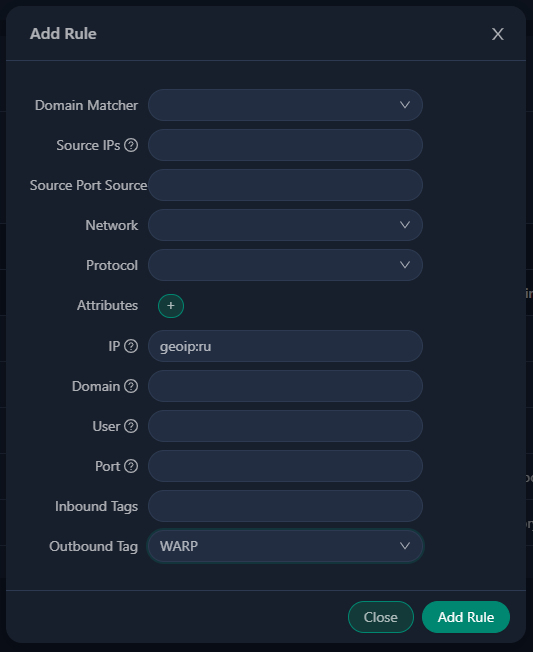
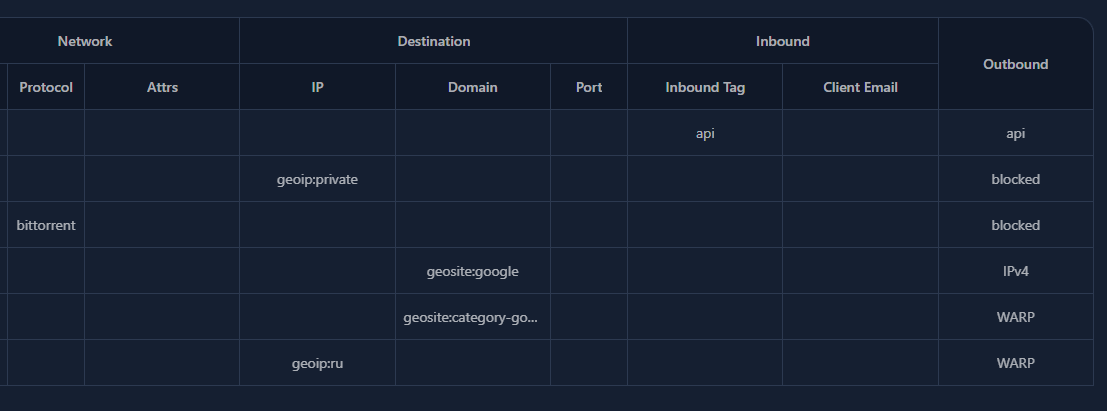
Step 2: Route all Russian traffic on the server through WARP.
To do this go to “Xray Settings” -> “Routing Rules”, find the line that says “geosite:openai” and edit it to read: geosite:category-gov-ru,regexp:.*\.ru$,geosite:openai
Finally, add a new rule via Add Rule (IP: geoip:ru, Outbound tag: WARP) as in the screenshot.
Again save at the top (Save Settings), then restart (Restart Xray)
Step 3: Find a donor site for obfuscation.
As early as step 4 the panel will suggest disguising as yahoo.com. It’ll do. But if your server is in Europe, that will add latency when opening new sites since Yahoo’s servers are in the U.S.
Ideally, find a site within your hoster’s subnet (here’s an instruction), but it may turn out there isn’t one in the subnet (happened to me).
So a simpler option: find a small site in the same country where you rented the VPS, then SSH to the server and ping it from there. If the response time is minimal (e.g., 15 ms)—it’s suitable.

nltimes.nl - pinged it from the VPS: I see 6 ms RTT; it’s suitableUpdate 21.02: Reports have appeared that nltimes.nl is no longer suitable for obfuscation—it started protecting itself somehow and disguising as it stops working rather quickly. Choose other sites for obfuscation.
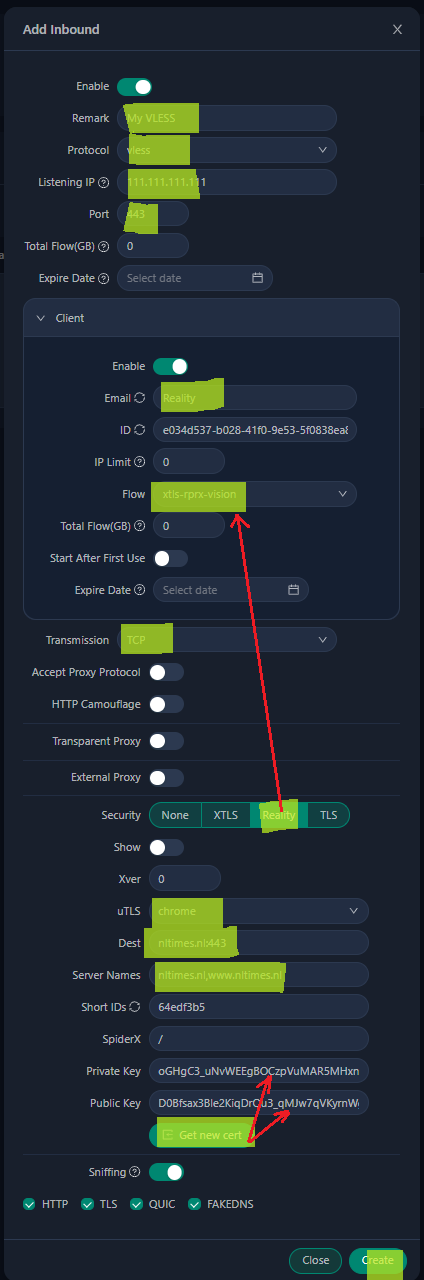
Step 4: Configure VLESS
In (Inbound) - (Add inbound) fill in the fields shown in the screenshot.
Most important:
- Remark and Email - any strings (not necessarily an email address); they don’t affect anything.
- Listening IP - specify your IP
- Port - strictly 443 to disguise as a normal HTTPS site.
- Only after selecting Security: Reality will the Flow: xtls‑rprx‑vision option appear
- uTLS - specifically Chrome, to mimic the most popular browser
- Dest, Server Names - specify the donor site (though you can leave yahoo.com)
- The (Get new cert) button generates keys.
- (Create) completes creation.
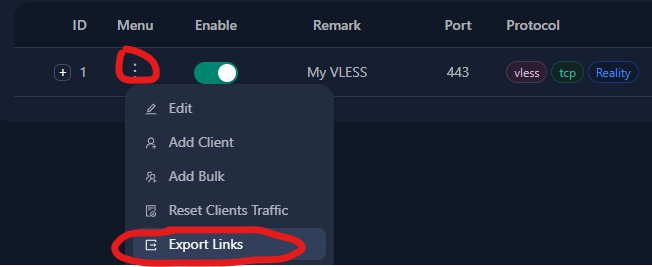
Step 5: Get the VLESS key
All that’s left is in Inbounds click (three dots) -> Export Links ... and the system will let you copy a key string like:
vless://e034d537-b028-41f0-9e53-5f0838ea8b3b@111.111.111.111:443?type=tcp&security=reality&pbk=D0Bfsax3Ble2KiqDrOu3_qMJw7qVKyrnWgpvDTVkb3M&fp=chrome&sni=nltimes.nl&sid=64edf3b5&spx=%2F&flow=xtls-rprx-vision#My%20VLESS-Reality
Save it somewhere handy.
Guide (4/6) - client setup (on computers and phones)
Only three steps here:
Install an app
Paste the key string from the server into it
Configure direct connection to the Runet
There are many apps, virtually for all platforms, and they’ve stood the test of time.
Windows:
Hiddify-Next (New versions) (Working version 0.11.1
Android:
Hiddify-Next (Play Market), (GitHub) (Working version 0.11.1)
iOS:
macOS:
Setting up Hiddify-Next
UPD 22.03.2024: Starting today newly installed versions of the app are called simply Hiddify, without Next. The links haven’t changed.
The leading app is Hiddify‑Next from our Iranian colleagues.
Its main advantages:
An extremely simple, clear “one button” interface with minimal settings.
Russian language
Available for all platforms except iOS (but the developers will add it soon)
The interface is so simple I decided not to include screenshots.
After installing the app you only need to do two things:
In settings set Region: RU
Copy to clipboard and paste into the app the vless key string via the (+) button
That’s it! Hit the big round button—and the proxy will work!
Hiddify-Next on Windows:
The app can work in two modes:
System proxy (default)
TUN mode
Most apps (including browsers) understand the first mode. But not all. If some Windows app doesn’t see your proxy—switch to TUN mode (in Hiddify‑Next settings). For TUN mode to work, Hiddify‑Next must be launched “as administrator” (the app will remind you).
Hiddify‑Next on Android:
Android has a super handy “Split tunneling” option (in Hiddify‑Next settings). iOS doesn’t.
Split tunneling lets you choose which apps will use the proxy. For example, I can select “Proxy only selected apps” and tick: “Instagram, Canva, and Chrome.” After enabling the proxy, only these three apps will use it, while the rest (banking apps, Yandex Maps, etc.) will connect to their servers directly.
If you set up split tunneling for chosen apps, you can keep the proxy on on your phone all the time.
Setup (iOS)
UPD: 01.2025 Hiddify has already been released for iOSHiddify, it’s stable and convenient, suitable for most people—I recommend it.
Other iOS apps (Streisand, Shadowrocket) may only be needed if you want to fine‑tune things—which is beyond this article.
Setting up Streisand (iOS)
Streisand is a free app, but in December it became paid for a few days. If it becomes paid again in the future (~200₽)—I think it’s worth the money.
So, the same two steps:
Copy to clipboard and paste the vless key string into the app via (+)
Configure direct connection to the Runet. A few steps here.
First—copy this long settings string to the clipboard.
streisand://aW1wb3J0L3JvdXRlOi8vWW5Cc2FYTjBNRERWQVFJREJBVUdEaGdaR2xWeWRXeGxjMTFrYjIxaGFXNU5ZWFJqYUdWeVZHNWhiV1ZlWkc5dFlXbHVVM1J5WVhSbFozbFVkWFZwWktJSEU5VUlDUW9MREEwT0R4QVNXMjkxZEdKdmRXNWtWR0ZuWFdSdmJXRnBiazFoZEdOb1pYSldaRzl0WVdsdVVtbHdWMjVsZEhkdmNtdFdaR2x5WldOMFZtaDVZbkpwWktDaEVWaG5aVzlwY0RweWRWZDBZM0FzZFdSdzFCUVZDZ3dORGhZU1cyOTFkR0p2ZFc1a1ZHRm5YV1J2YldGcGJrMWhkR05vWlhLaEYxbGtiMjFoYVc0NmNuVlpVbFV0WkdseVpXTjBYRWxRU1daT2IyNU5ZWFJqYUY4UUpFUkROVGxETXpsRExVUXdSRVl0TkRsR015MDVRVEl3TFVFMlJUVkVSakkwUkRaRE9RQUlBQk1BR1FBbkFDd0FPd0JBQUVNQVRnQmFBR2dBYndCeUFIb0FnUUNJQUlrQWl3Q1VBSndBcFFDeEFMOEF3UURMQU5VQTRnQUFBQUFBQUFJQkFBQUFBQUFBQUJzQUFBQUFBQUFBQUFBQUFBQUFBQUVK
Then—paste it into the app via “+” in the top right.
Finally, go to “Routing”, and there (tick), (toggle “enable”), and go back (left arrow)
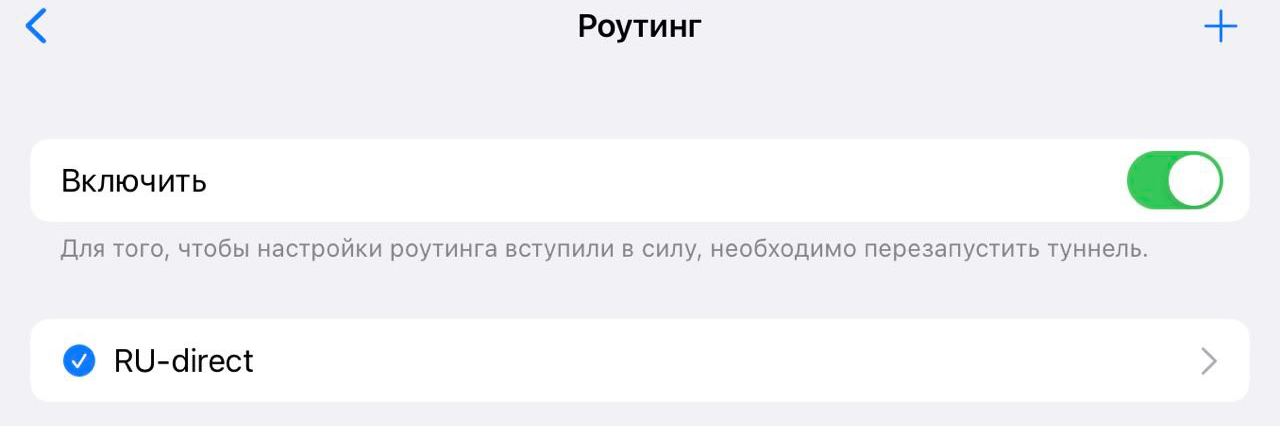
You can connect! (on first connect the phone will ask for a password).
I limited the guide to two apps, but if you want to experiment with others—there will be three links at the end with more info.
upd: I don’t have macOS to test, but @Spoofi pointed out that macOS Hiddify Next currently doesn’t “do” TUN mode (I wrote about TUN above), but FoxRay does.
upd 25.01. Streisand started showing ads. To keep them out of the way—after finishing all settings—you can enable/disable the VPN via system settings rather than the app UI. Another option is to use the paid ShadowRocket. There will be links at the end—there you can find ShadowRocket setup guides. If you’re setting up a proxy for the first time—I recommend starting with Streisand.
Guide (5/6) — checking the proxy
If you’ve followed the guide—your devices should already have a working proxy. But is it doing its job? Did the VPS provider mislead you? Let’s check.
Make sure the proxy is enabled.
In a browser go to https://ipinfo.io/. Do you see your VPS’s IP? Then the proxy works and you set everything up correctly.
Open a browser and go to https://rutracker.org. Does it open? Then you’ve bypassed Russian censorship.
Open a browser in incognito mode and go to https://maps.google.com. Do you see the map of the country where you bought the VPS? The IP is likely “clean”.
Look again at https://ipinfo.io/. On the right in the
countrysection do you see the country where the VPS is located? Then the IP is “clean”.Go to https://canva.com Do you see the normal site without being turned away for being from Russia? Then you’ve bypassed Western censorship.
Go to https://google.com No 403 error and search is available? Then Google hasn’t previously banned your IP.
If something went wrong:
items 2 and 3: you likely made a mistake following the guide—double‑check.
items 4,5,6—likely the hoster gave you a “dirty” IP that’s listed in databases as Russian. There’s a chance the databases will update within two weeks… or not. It makes sense to write hoster support, describe the situation and ask to change the IP. Most will accommodate.
item 7—ask the hoster to change the IP.
Backup plan:
If some Western site doesn’t let you in via the VPS, then as a workaround you can send traffic to that site via WARP.
To do this in the panel 3x‑ui->Xray Settings->Routing Rules find and edit the line geosite:category-gov-ru,regexp:.*\.ru$,geosite:openai — add sites separated by commas, e.g. geosite:category-gov-ru,regexp:.*\.ru$,geosite:openai,intel.com,canva.com (be sure to save changes and restart Xray)
After that Western sites will see the WARP network’s IP instead of your VPS IP, which will almost certainly bypass their censorship.
Yes, getting an IP address is always a lottery and there’s a small chance of issues, but most often it works the first time.
Guide (6/6) — setting up the CloudFlare CDN
On to the final and most interesting section.
Any risk management boils down to three steps:
Identify the risk (in this case: Russian censorship will block your server)
Mitigate the risk (you’ve already done this by applying “Theory pt.3”)
Define a Plan B for the rare case the risk still materializes.
Although I don’t believe that—with the precautions taken—the server can ever be blocked, reality usually doesn’t care about our beliefs.
Proxying via a CDN is Plan B. Now you’ll set up another, backup connection that will work even if your VPS becomes unreachable from within Russia.
Step 1: Choose a domain registrar and make sure the domain name is available (see Theory pt.2), but DO NOT BUY it yet. CloudFlare only works with second‑level domains (there are exceptions, but they won’t help us). A second‑level domain is one with a single dot, like mypersonalsite.com or myhabraproxy.ru.
For this guide I chose the domain name habraproxy.store from the seller Dreamhost. Right now Dreamhost is giving away .store domains for free for 1 year—but only for customers who have previously bought something.
By the way, if you already have your own site with a domain...
...then you’re definitely not a “dummy”, and you will definitely figure out how to change name servers at the registrar, set up your site to work properly through CloudFlare, and for our VPS proxying purposes use a subdomain.
So, you’ve chosen a seller and a domain name but not purchased, let’s continue.
Step 2: Register on CloudFlare.com (Sign Up — Free plan — Add Website — email+password). Save the password, confirm your account via the link in the email.
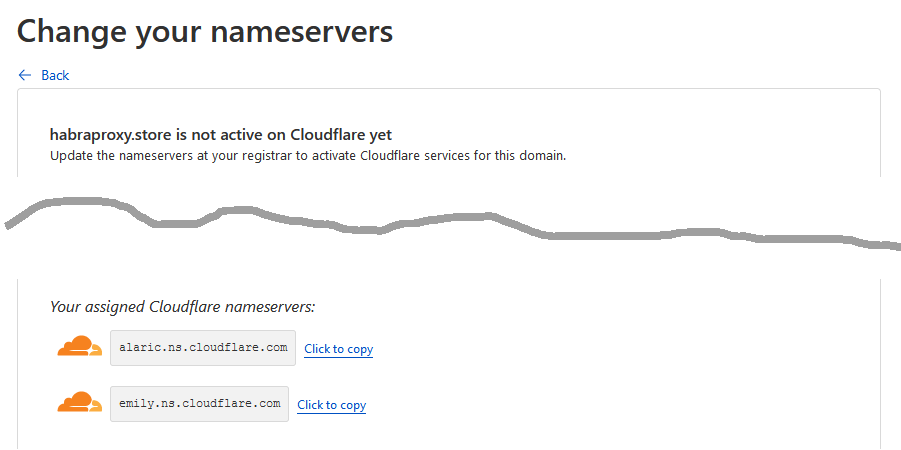
Step 3: In CloudFlare, in the top “Websites” section, add the not‑yet‑purchased domain name. Then Free plan — Continue... until you land on the “Change your nameservers” page with two orange clouds.
We’ll need these two lines. Yours may differ from mine.
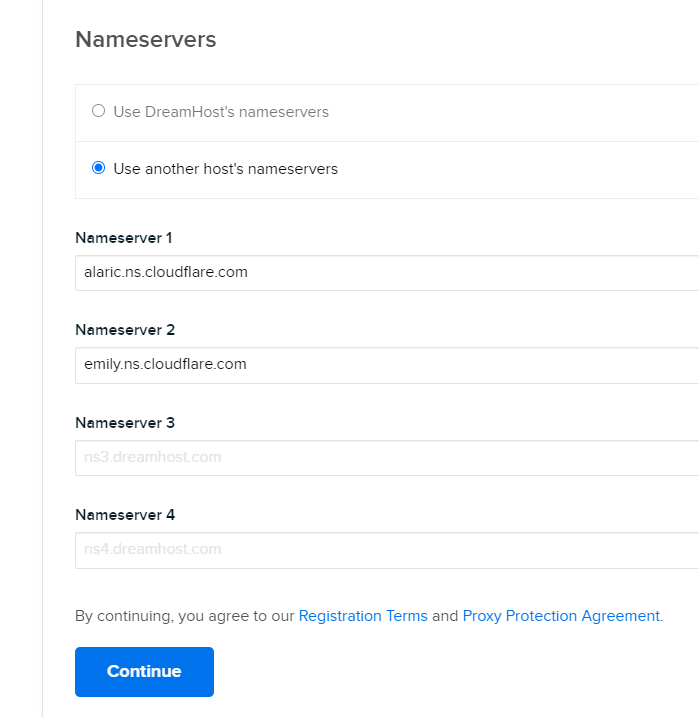
Step 4: Now go ahead and buy your domain name, and during purchase specify that you’ll use your own name servers, not the registrar’s. Enter those two lines and complete the purchase.
The screenshot shows my registrar’s site.
So you’ve bought the domain and set the required name servers. Activating a freshly purchased domain will take a few minutes—perfect time to finish CloudFlare setup.
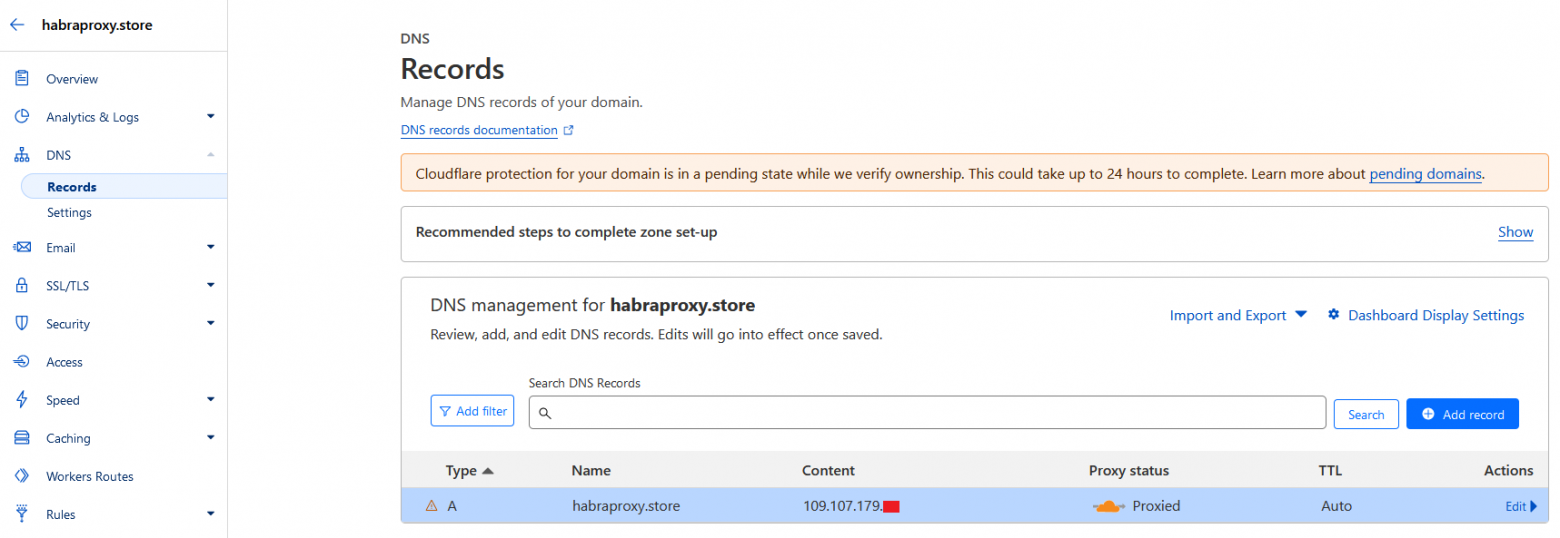
Step 6: In (DNS) create an A record for your domain to your server’s IP. For me it looks like this:
Step 7: (I’ll skip screenshots)
In (Network) enable “gRPC”
In (SSL/TLS) — (Edge Certificates) — (Minimum TLS Version) set “TLS 1.3”
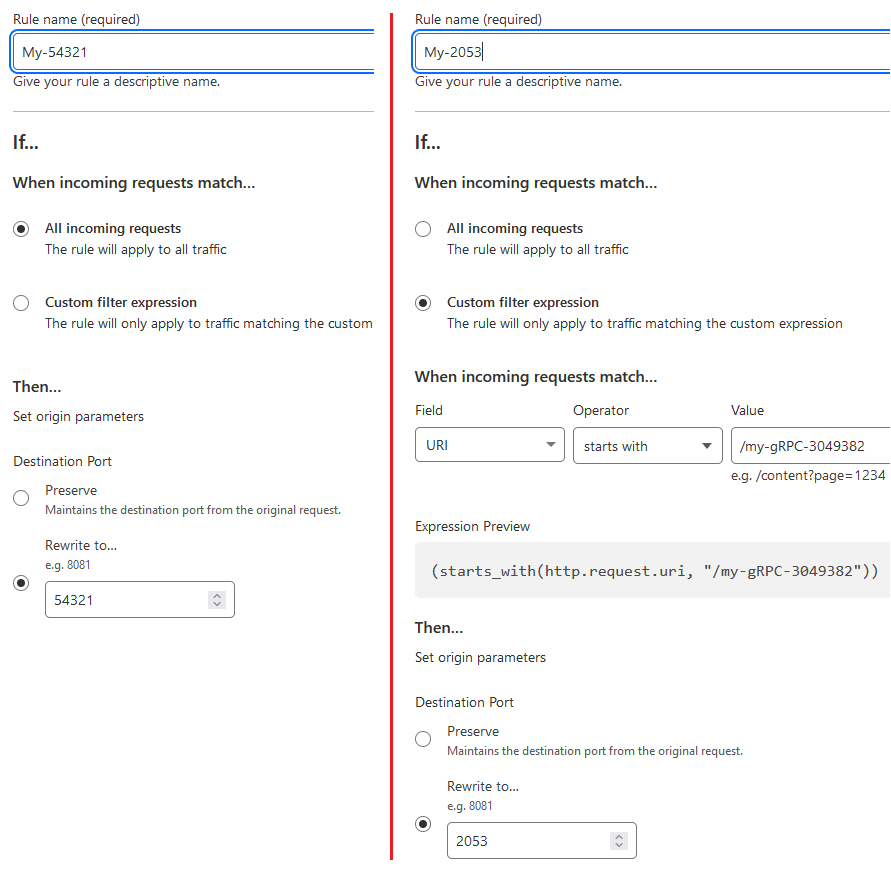
Step 8: In (Rules) — (Origin Rules) create two rules:
(1) Send all requests to the server to port 54321 (enter the port your 3x‑ui panel uses)
(2) Send all requests to the secret path /my-gRPC-3049382 (come up with your own) to port 2053
The order of these two rules matters.
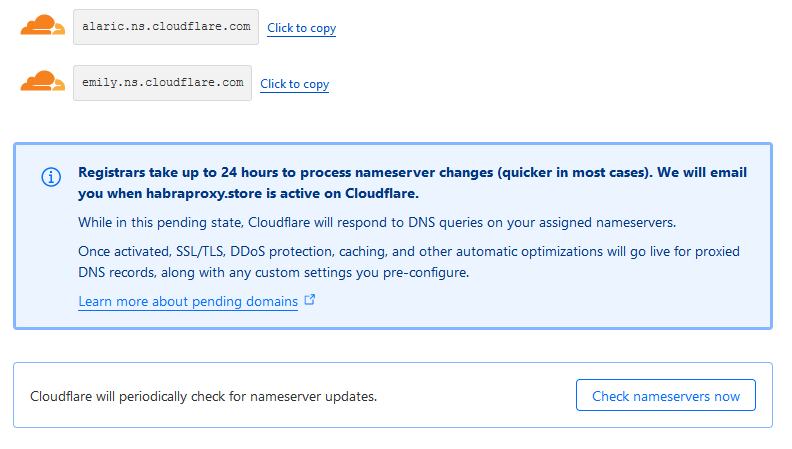
Step 9: Go back to (Overview), and if you see a “Check nameservers now” button under the orange clouds—click it to speed things up.
(if much time has passed and there are neither clouds nor a button—even better, proceed to the next step)
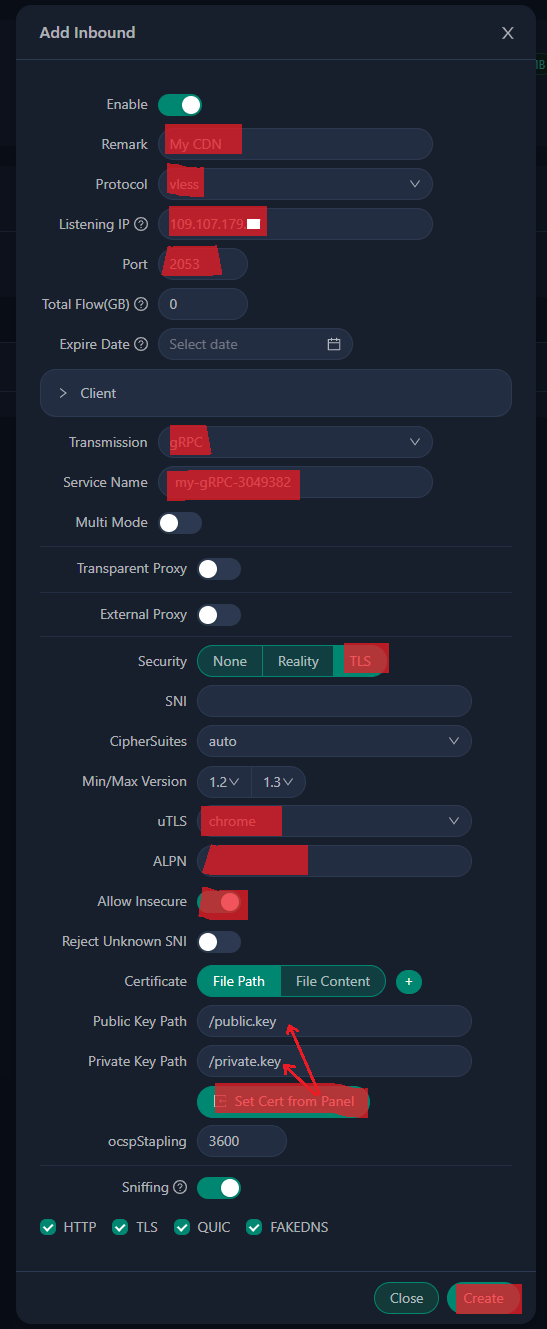
Step 9¾: Create a second VLESS connection for the CDN.
Return to the 3X‑UI panel. Inbound — Add Inbound
Most important:
- Port - the same as in the “second rule”. 2053 or any other you choose (though I see no point in changing it).
- Transmission - gRPC; this connection type is unmetered on CloudFlare.
- Service name - the secret string from the “second rule” my-gRPC-3049382, but strictly without a leading “/”.
- uTLS - specifically Chrome, to mimic the most popular browser
- ALPN leave it empty.
- The (Get Сert from Panel) button fills in the keys.
- Allow Insecure - enable for testing; once you start using the CDN you can disable it.
Finally, test what you got. Export the key string of this new connection and copy it into the app— the proxy should work. (this isn’t the CDN yet; you’ve only connected to your VPS via port 2053 using VLESS‑gRPC, but soon CloudFlare will do that for you)
Update. In new versions of many apps, either a bug or a “feature” appeared that makes them incompatible with this step. Likely due to a quirk in the new sing-box core underpinning all client apps.
What to do? Use the proven Hiddify-Next app version 0.11.1
Or do this: in most cases filling the SNI field with your domain name (for examplehabraproxy.store— in the screenshot it’s empty) solves the compatibility issue with new versions.
What if you have iOS, where only fresh app versions are available?
a) follow this step as instructed, filling the SNI field as well. There’s a chance the direct connection won’t work, but it will be useful at step 13
b) follow step 13 with the updated instructions; the CDN will work.
Step 10: Final CloudFlare setup.
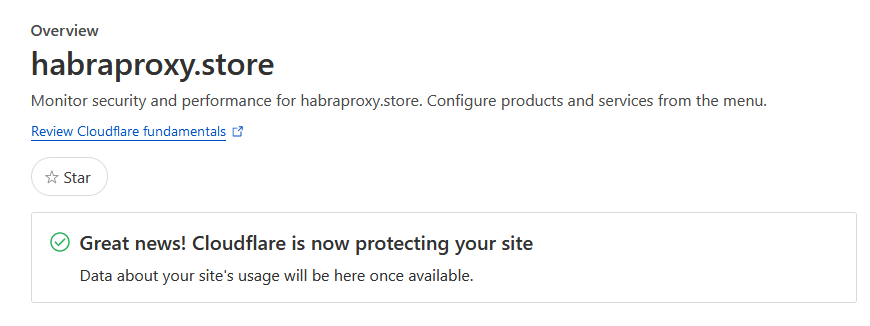
Refresh the Overview section.
CloudFlare should greet you with: "Great news! Cludflare is now protecting your site"
If this message isn’t there, and instead you still see the page with two orange clouds—it means one of two things:
You need to wait a bit longer
You did something wrong.
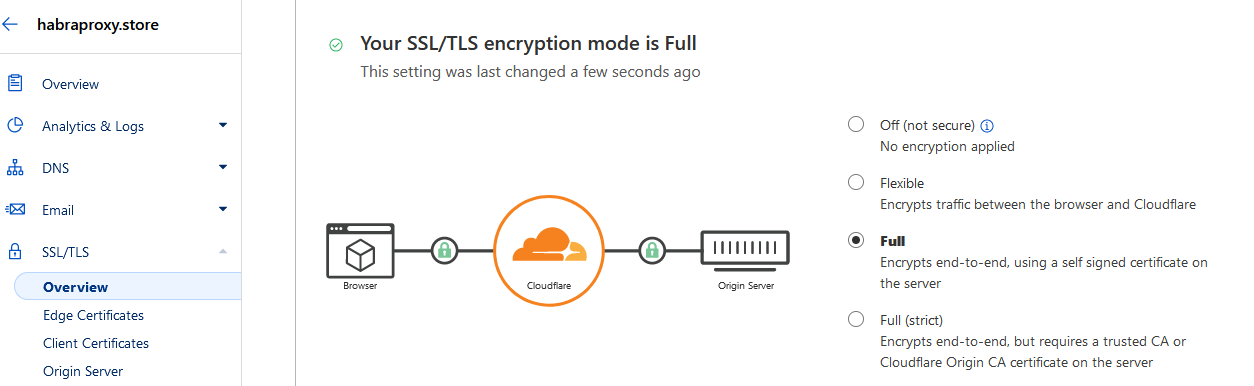
If so, then in SSL/TLS enable the Full mode
Now you’ve definitely completed CloudFlare setup.
Step 10-b: Disable ECH. (Update as of 11.2024)
Facts: In late October 2024 Cloudflare forcibly enabled ECH technology on all its servers.
And in early November 2024, RKN blocked this technology across the entire Runet. If you don’t disable ECH on CloudFlare, nothing will work.
Theory: The ECH technology (Encrypted Client Hello) is designed to hide the addresses of visited sites from censors. Censors don’t like that. In China ECH has been blocked for years. I’m surprised RKN only did it now.
Our task is to masquerade as an innocuous site, not to hide the page address. So we don’t need ECH. We’ll disable it.
What to do: On free plans it can’t be disabled via the site, but there’s a workaround.
Run the following command in the command line:
curl -X PATCH "https://api.cloudflare.com/client/v4/zones/ID_ZONE/settings/ech" -H "X-Auth-Key: YOUR_GLOBAL_API_KEY" -H "X-Auth-Email: YOUR_EMAIL" -H "Content-Type: application/json" --data '{"id":"ech","value":"off"}'
ID_ZONE — select your site in the dashboard and it’ll be on the first Overview tab on the right.
YOUR_GLOBAL_API_KEY — My Profile > API Tokens > Global API Key, click View
YOUR_EMAIL — your CloudFlare account email
In 1–2 minutes it will take effect.
How to verify ECH is off?
Open this link in a browserhttps://dns.google/resolve?name=rutracker.org&type=HTTPS
(instead of rutracker.org insert your site’s address: mine is habraproxy.store)
If the response does not contain the letters ECH — then you did everything right.
Step 11: Check.
Open a browser and go to https://habraproxy.store/mysecreturl/ (replace the site name with yours and the path with your own—the one you set for the 3x‑ui panel).
The 3x‑ui panel will open. From now on you’ll manage the panel from this address!
Save this address somewhere.
Step 12: Another check.
Open a browser at https://habraproxy.store and make sure there’s a blank 404 page.
That means any censor visiting your site will see there’s a real web server there. The 3x‑ui panel itself acts as the web server, returning 404 for any address it doesn’t know. No outside observer will learn the panel’s address (
/secreturl/). And if a censor listens to the traffic, they’ll see an encrypted gRPC stream used to serve web apps across the internet.
Step 13: Time for MAGIC:
Edit the key string of the second connection:
Replace the IP with the domain name,
Change the port to :443,
Delete
&alpn=&allowInsecure=1Add (before
#)&sni=habraproxy.storeinsert your domain, not mine :)Edit the name (after
#) as you like
Before: vless://03684ba0-1994-4106-86da-e91fdd9007e0@111.111.111.111:2053?type=grpc&serviceName=my-gRPC-3049382&security=tls&fp=chrome&alpn=&allowInsecure=1#My%20CDN-tjo1gifl
After: vless://03684ba0-1994-4106-86da-e91fdd9007e0@habraproxy.store:443?type=grpc&serviceName=my-gRPC-3049382&security=tls&fp=chrome&sni=habraproxy.store#My%20CDN
Finally, copy this string into the app, check that it works and enjoy the backup channel for your proxy.
Time to quote @MiraclePtr:
Fair use
Obviously, the fact that CDNs allow proxying WebSockets and gRPC on their free tiers is an act of goodwill. Let’s not be greedy and use these capabilities only in truly desperate cases, which hopefully won’t come.
</КОНЕЦ ИНСТРУКЦИИ>
Drawbacks of this solution
The “complexity” of setup:
Sure, buying a VPN for 100 rubles a month is much easier than setting up “all of this” for the first time in your life. I have no illusions that “every homemaker in the country will make a proxy part of their toolkit.” This solution is for a small number of people who deeply value freedom of information, deeply value reliability, and are ready to invest attention into techy “wizardry”.Periodic VPS unavailability:
Uptime of a budget VPS is about 99.9% (sometimes higher, sometimes lower). That means roughly 42 minutes a month the VPS can be unavailable (sometimes those minutes stretch into hours or even days). So you will inevitably face a situation where the VPS doesn’t respond by IP nor via the CDN. There are many reasons; I’ve encountered at least these three: a hoster screw‑up, a DDoS attack on the hoster, issues at the data center where the VPS physically resides (which the hoster can’t influence).I solve this simply—I have two servers from different hosters in different countries (primary and backup); that suffices.
Another approach—in case of force majeure—is to keep a spare key string (shadowsocks, vless, trojan) from some free service at hand; there are plenty in Telegram. Of course, routing your traffic through a free service is sketchy, but if the VPS is down and you urgently need access, temporary use of a free service may be acceptable—your call.
Trusting Chinese developers:
Although both server and clients are open‑source apps (based on Xray and SingBox), they haven’t undergone independent audits, and theoretically there may be bugs, and developers—also theoretically — could add malicious code in new versions (though you can say that about any open‑source solution; it hasn’t stopped open source existing). One way to manage this risk is to use vetted versions of client and server apps. Using computers and phones you already trust hundreds of people and corporations. If these open‑source tools don’t inspire trust—look for others. I don’t see a problem here; just voicing an existing viewpoint.No XTLS in CDN proxying:
Yes, my solution uses XTLS only for direct connection to the server, and plain TLS for proxying through the CDN. I didn’t find a simple way to set up XTLS via a CDN, though it’s possible. There will be links at the end with a solution. In Russia they don’t yet detect “encryption inside encryption” (TLS‑in‑TLS), but if they learn to—that could be a potential problem, though I estimate the chance as close to zero.Bypassing censorship, not anonymity:
Yes, using a proxy noticeably increases anonymity on the internet, but no proxy guarantees absolute anonymity. This solution is not designed for anonymity; it’s for bypassing censorship—free access to information. Please don’t confuse censorship circumvention with anonymity; they are very different tasks.
I tried to make this article comprehensive and self‑contained so you can set up a personal proxy server to bypass censorship with ample protection against blocking.
But in case you want to dig deeper—I recommend these three articles that inspired me and contain additional technical details and nuances: